
Skip to content
Works And Works
ToolsFreight Control
Logistics and supply

Control your freight and supply end to end

A control board for projects, purchase orders, truck requests, sales, payments and evidence, with alerts and a supply traffic light.

13management sections
Traffic lightsupply
CSVdata export
The problem

When purchasing, trucks and payments run separately, you lose control

Coordinating supply through calls and spreadsheets causes delays, cost overruns and poor traceability.

Untracked trucks

There's no single place to see what was ordered, what's on route and what arrived.

Disconnected purchasing and freight

Purchase orders aren't linked to the dispatch or to the project that needs them.

Scattered evidence and payments

Delivery notes, photos and payments end up spread across different emails and folders.

Freight Control links project, purchase, truck, evidence and payment on one board with alerts.

See it in action

This is what Control de Fletes looks like inside

Real screenshots of the tool on desktop and mobile, plus a 60-second tutorial with the most-used steps.
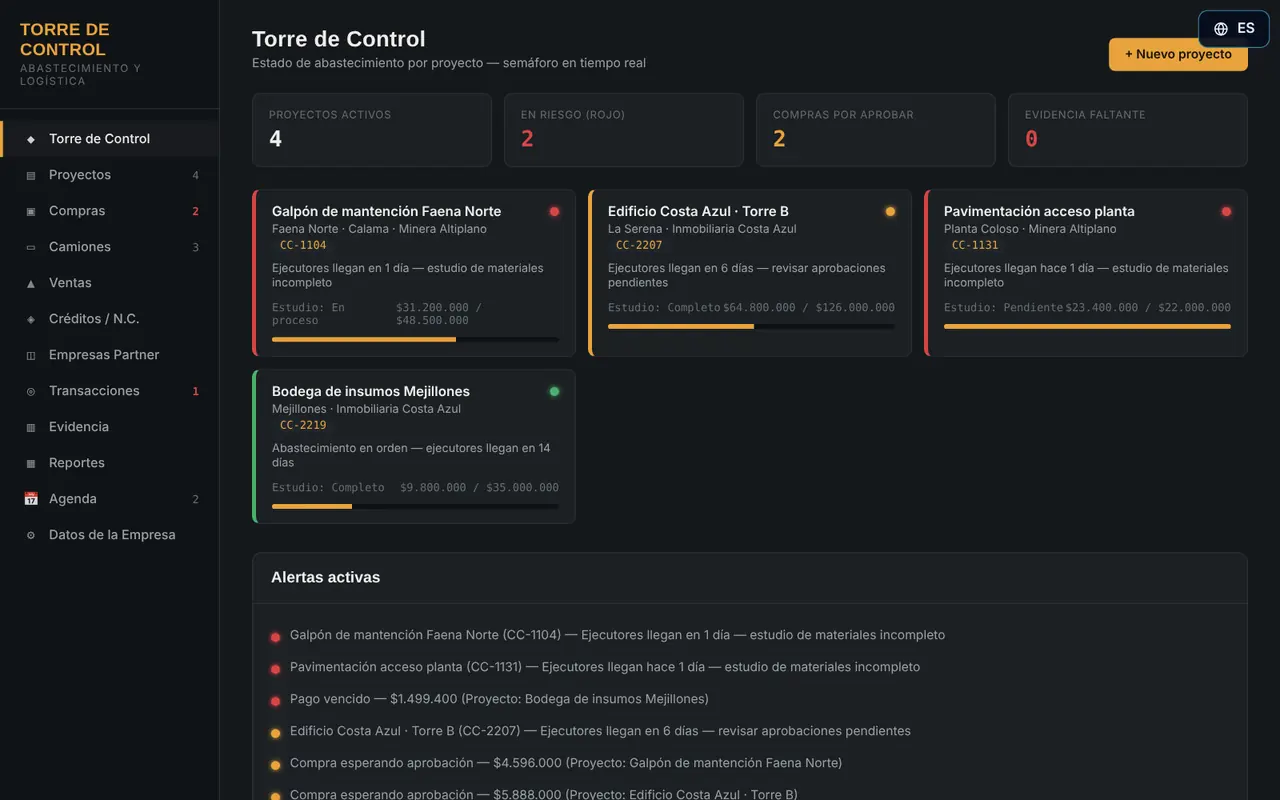
Control de Fletes main screen
Features

The whole supply flow on one board

From the purchase order to the payment, with backup at every step.

Dashboard with alerts

Active alerts and a supply traffic light to act in time.

Projects

Project management with photo evidence and related purchases.

Purchase orders

Logging and tracking of the purchases each project needs.

Truck request

Request and track trucks linked to the purchase and the project.

Sales and credits

Sales, credit notes and credits in the same place.

Partner companies

Register of suppliers and companies you work with.

Payments and transactions

Control of payments and transactions linked to each operation.

Evidence

Dispatch and receipt photos and backups always at hand.

Reports and CSV

General summary and per cost center, with data export to CSV.

Also includes a smart agenda with calendar, meetings, tasks and notepad.

How to use · express

Freight Control in under a minute

Watch the steps like a short video. Tap right to go forward, left to go back, and press and hold to pause.

  1. Register the projectName, client, site and the date the crews arrive: that's what starts the traffic light.
  2. Request the truckProject, origin, destination and date in a single form.
  3. Follow the traffic lightRed if the crews arrive in 3 days and materials are missing; yellow if there are purchases to approve; green if everything is ready.
  4. Close with evidence and paymentAttach the receipt evidence and record the payment in Transactions.
Guided tutorial

Practice on the Freight Control screen

We show you where to click and what to fill in on each screen. Move forward with the buttons, the keyboard arrows or by tapping the highlighted element.

Coordinate the supply for a project

Read the traffic light, create the project, move the purchase forward, request the truck and record the payment.

  1. Tour the Control TowerProjects, purchasing, trucks, sales, payments and reports in a single menu.On large screens the menu is on the left.
  2. See your 4 indicatorsActive projects, at risk, purchases to approve and missing evidence: urgent things first.There are 2 projects in red.
  3. See why this project is redRed: the crews arrive in 3 days or less and the materials study is not complete.«Crews arrive in 1 day — materials study incomplete».
  4. Press «+ New project»All supply hangs off a project.The project form opens.
  5. Enter the crews' arrivalThis date drives the traffic light: the closer it is, the more urgent.06-11-2026.
  6. Mark the materials studyOnly with the study complete and no pending purchases does the project turn green.Complete.
  7. Follow the purchase order flowPurchase → Quote → Delivery note → Invoice: you always know where it stands.This purchase is at Quote.
  8. Attach the purchase evidenceA purchase without photos counts toward «Missing evidence».2 photos attached.
  9. Press «Move to delivery note»Changing the status updates the project's traffic light.The purchase moves to Delivery note.
  10. Press «+ Request truck»Transport is coordinated and visible to the whole team.«Truck requested» appears with status Requested.
  11. Update the truck statusRequested → Scheduled → Delivered: nobody has to call to ask.Current status: Requested.
  12. Press «Record payment»The payment is linked to the project and the company.«Payment recorded» appears.
  13. Export your reportsCSV per table and a summary per cost center for finance.Projects, purchases, trucks, sales and transactions.
Full guide

How to use Freight Control, module by module

Supply control tower: projects with traffic light, purchase orders, trucks, sales, payments, evidence and reports.

Before you start4 steps

How to access Freight Control from any device.

  1. Sign in to the platformGo to worksandworks.com and tap «Sign in» (top right). Enter your username and password.
  2. Open your profileAfter signing in you land on your company profile. Scroll down to «WAW Tools access».
  3. Open the toolTap the tool card and then «Open». It opens in a new tab; you can leave it open all day.
  4. Use it wherever you areWorks on phone, tablet and computer with the same user. Nothing to install.
Dashboard and traffic light5 steps

Know which project is at risk before it's too late.

  1. IndicatorsActive projects, at risk (red), purchases to approve and missing evidence.
  2. RedThe crews arrive in 3 days or less and the materials study is not complete.
  3. Yellow7 days or less left with the study incomplete, or there are purchases to approve with 5 days or less left.
  4. GreenMaterials study complete and no purchases pending approval.
  5. Active alertsEach alert explains the cause and how many days are left.
Projects4 steps

All supply hangs off a project.

  1. Create the projectName, client, site and cost center.
  2. Dates and studyCrews' arrival and materials study (pending, in progress, complete).
  3. BudgetTotal budget and spent (CLP) to see budget progress.
  4. Import a proposal«📥 Import proposal» if you already have it prepared.
Purchase orders5 steps

Each purchase with its flow and its backup.

  1. New purchaseProject, supplier, date, VAT and overall discount. The number is generated automatically if left empty.
  2. ItemsAdd each item with quantity and price.
  3. Payment and termsPayment method, delivery time, observations and references (e.g. delivery note no.).
  4. EvidenceAttach photos of the purchase or the document.
  5. Move the status forwardPurchase → Quote → Delivery note → Invoice. Filter the list by status.

A purchase in «Purchase» status counts as «to approve» and can turn the project yellow.

Truck request2 steps

Coordinate the transport for each delivery.

  1. RequestProject, origin, destination and date.
  2. Update the statusRequested → Scheduled → Delivered.
Sales, credits, partners and payments4 steps

The financial side of the operation.

  1. SalesClient, project, amount, date and status (pending, invoiced, paid).
  2. Credit notes and creditsType, company, amount, date and status.
  3. Partner companiesName, tax ID, category and contact of suppliers and carriers.
  4. Transactions and paymentsType, company, project and amount of each movement.
Evidence, reports, agenda and tax e-invoicing5 steps

Follow-up and closing.

  1. EvidenceAll purchase and delivery photos in one place.
  2. ReportsExport CSV per table and check the general summary and per cost center.
  3. Smart agendaCalendar, upcoming meetings, task list and freehand notepad.
  4. E-invoice preparation (Chile SII)Fill in issuer and recipient tax IDs, company name, folio, net and VAT, and generate the JSON for stamping.
  5. Company dataCompany name, tax ID, line of business, bank and signatory: they appear on the documents.

Still have a question? Message us on WhatsApp o request a guided demo.

Benefits

Full visibility of supply and its costs

  • The whole flow connected project, purchase, truck, evidence and payment.
  • Timely alerts you act before the delay affects the site.
  • Traceability per project you know how much is being spent and on what.
  • Reports per cost center and data export to CSV.
  • Teamwork agenda, tasks and notes in the same tool.

Built for

Transport and logistics Construction companies and sites Supply and warehouse Industry Project management

Available on

Phone Tablet Desktop In the cloud
WAW suite

Works better alongside other tools

Each solution is independent, but they share access and the same way of working.

Frequently asked questions

We answer your questions

What can I control with Freight Control?

Projects, purchase orders, truck requests, sales, credit notes, payments, partner companies and evidence, all on one board.

How does the supply traffic light work?

It summarizes the supply status of each project so you can see at a glance where to act.

Can I export the information?

Yes. Reports let you export data to CSV, with a general summary and one per cost center.

Can I test it with my operation?

Of course. Request a demo with the form or via WhatsApp and we'll prepare it with a case similar to yours.

Contact

Let's talk about Freight Control

Tell us about your case and we'll show you the tool working with your operation. No commitment.

WhatsApp Request a demo