
Skip to content
Works And Works
ToolsMiCaja
Finance and accounting

Clear accounting for your business, without the hassle

MiCaja brings together entries, sales and quotes, VAT and Form 29, projects and reports in one accounting system with an AI assistant.

11integrated modules
F29VAT up to date
AIassistant included
The problem

Accounting shouldn't depend on spreadsheets

When sales, expenses, projects and taxes live in different places, closing the month is a race against time.

Accounting in spreadsheets

Files that grow out of control, with fragile formulas and versions nobody knows which is right.

VAT and Form 29 at the last minute

Gathering the period's sales and purchases at month end causes errors and needless stress.

Business data in silos

Sales, projects and tasks live in separate tools and never come together to make decisions.

MiCaja organises day-to-day accounting and gives you visibility of the business without juggling several tools.

See it in action

This is what MiCaja looks like inside

Real screenshots of the tool on desktop and mobile, plus a 60-second tutorial with the most-used steps.
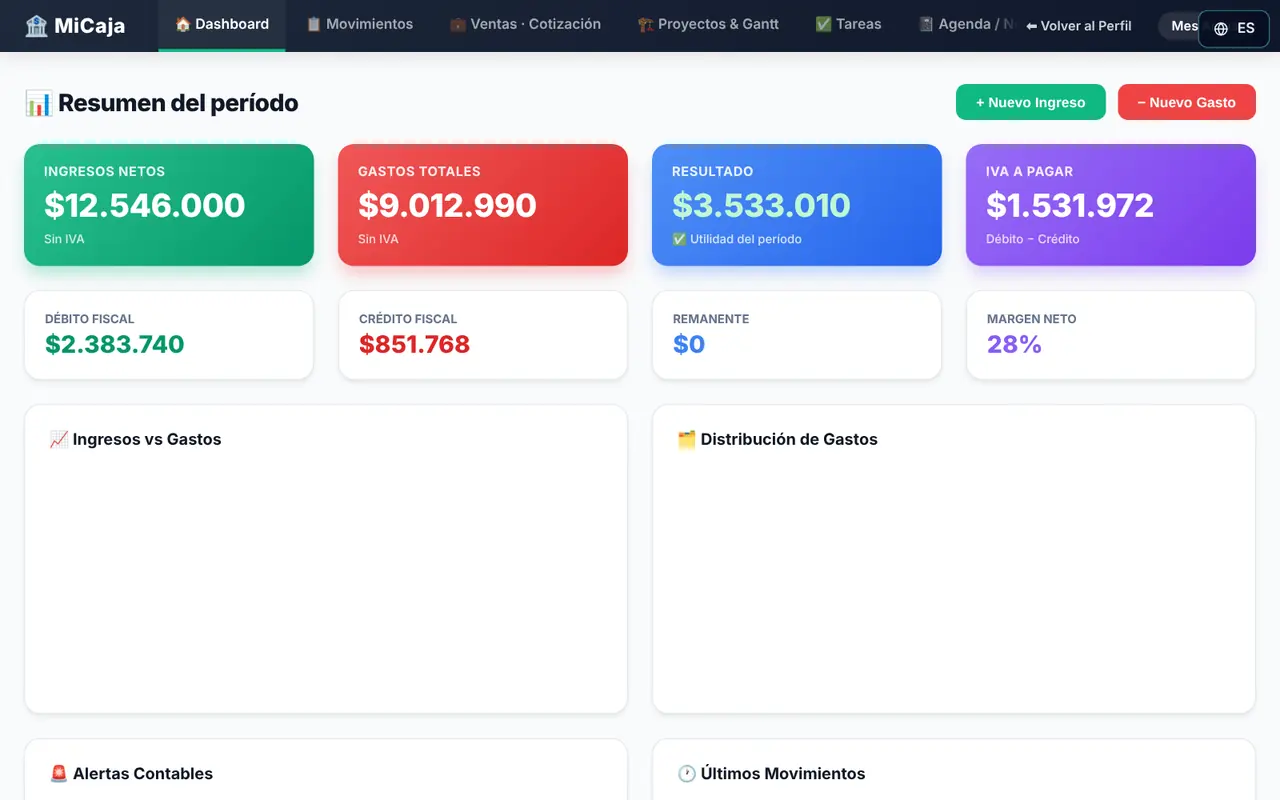
MiCaja main screen
Features

A complete accounting system, ready to use

The modules a business needs to keep its numbers up to date.

Dashboard

Summary of income, expenses and the overall state of the business as soon as you open the system.

Entries

Record and look up accounting entries with a table and filters.

Sales and quotes

Quote and record sales with a professional format for your clients.

Projects and Gantt

Plan projects with a Gantt chart and track progress.

Tasks and calendar

Tasks, calendar and notes so nothing gets lost in day-to-day operations.

VAT and Form 29

Track the period's VAT to prepare your tax return.

Reports

Business reports to review results and make decisions.

AI assistant

Ask about your data and get help understanding the numbers.

It also includes a built-in user guide so your team can get started fast.

How to use · express

MiCaja in under a minute

Watch the steps like a short video. Tap right to go forward, left to go back, and press and hold to pause.

  1. See your business at a glanceThe dashboard shows income, expenses, VAT payable and the month's balance, always up to date.
  2. Record an incomeTap «+ Income». Every sale is saved with its date and category.
  3. Fill in and saveEnter the net amount, mark whether it is subject to VAT and attach the invoice or receipt.
  4. Review your entriesEverything you record appears in a list you can filter and download to Excel.
  5. Prepare VAT and Form 29MiCaja calculates the month's output VAT, input VAT and VAT payable.
  6. Ask the assistantAsk for a cash-flow or expense analysis and get the answer in seconds.
Guided tutorial

Practise on the MiCaja screen

We show you where to click and what to fill in on each screen. Move forward with the buttons, the keyboard arrows or by tapping the highlighted element.

Your first month in MiCaja, step by step

You record a sale and an expense with their supporting documents, import an SII invoice and get the month's VAT ready.

  1. This is your menu: each tab is a part of your businessThat's how you find everything in one place: sales, expenses, taxes and reports.On a phone the menu opens with the ☰ button.
  2. Look at your 4 numbers for the monthNet income, total expenses, result and VAT payable tell you in 5 seconds whether the month is going well.They recalculate automatically every time you record something.
  3. Press «+ New income»Every sale you record today is one you won't forget when closing the month.The income form opens.
  4. Choose the date and categoryThe category organises your reports: later you'll see how much you sell per type of service.Use the document date, not today's date.
  5. Enter the net amount, excluding VATMiCaja calculates the VAT for you: no maths needed.Watch the field fill in: 1.250.000.
  6. Mark «Yes» in «Subject to VAT?»That way this income only adds to the output VAT on your Form 29.The VAT on the sale is calculated for the month.
  7. Attach the invoice or receiptIf the SII or your accountant asks for proof, it's already attached to the entry.The file is linked: invoice-1042.pdf.
  8. Press «Save income»One click and it's recorded: no more spreadsheets.The «Income saved» notice appears.
  9. See what happened to your indicatorsYou instantly see the effect of each sale on your cash.Net income went up from $4.850.000 to $6.100.000, and so did the result.
  10. Now press «− New expense»Recording expenses with input VAT lowers the VAT you pay.The expense form opens, with an extra field: the financial classification.
  11. Choose the financial classificationSeparating fixed costs, variable costs and investments shows you where the money goes.This expense will appear as «Fixed cost» in your reports.
  12. Mark «Yes» in input VAT if the invoice includes itThat VAT is deducted from what you owe: it's money you get back.The month's input VAT increases.
  13. Press «Save expense»That way your result reflects what really happened in the month.The «Expense saved» notice appears.
  14. Review everything in «📋 Entries»It's your ledger of money in and out, filterable by month.Your income appears at the top, highlighted. With «Export Excel» you send it to your accountant.
  15. In «🇨🇱 SII API», press «+ Import»Your SII invoices come in automatically: zero typing, zero errors.Invoice 1042 becomes an entry with its net amount and VAT.
  16. Open «🧾 VAT / Form 29» and review the summaryYou get to your tax return knowing exactly how much to pay.Output VAT − input VAT = VAT payable for the month. Download it to Excel.
  17. Press «💰 Cash flow» in the AI assistantIt explains your numbers in plain words, no accounting degree needed.The assistant replies with your monthly cash flow and compares it with the previous month.
Full guide

How to use MiCaja, module by module

The month's accounting in one place: income, expenses, sales, VAT and Form 29, with an assistant that explains the numbers.

Before you start4 steps

How to open MiCaja from any device.

  1. Sign in to the platformGo to worksandworks.com and tap «Sign in» (top right). Enter your username and password.
  2. Open your profileAfter signing in you land on your company profile. Scroll down to «WAW Tools access».
  3. Open the toolTap the tool card and then «Open». It opens in a new tab; you can leave it open all day.
  4. Use it wherever you areWorks on phone, tablet and computer with the same user. Nothing to install.
Dashboard: the state of the month3 steps

It's the home screen. It tells you in seconds how your cash is doing.

  1. Read the four indicatorsIncome, Expenses, VAT payable and Balance for the period. They update automatically when you record something.
  2. Use the shortcuts«+ Income» and «− Expense» open the form without leaving the dashboard.
  3. Watch the trendThe chart compares recent months so you spot a drop in time.

If you're just starting, use «🧪 Load Sandbox (Demo)» to see the tool with sample data before loading your own.

Record income5 steps

Every sale or money coming in is an income.

  1. Open the formTap «+ Income» on the dashboard or «+ New income» in Entries.
  2. Fill in date, category and descriptionUse the document date. A clear description (client and service) saves you time later.
  3. Enter the net amountWithout VAT. If the document is exempt, mark «No» in «Subject to VAT?».
  4. Attach the supporting documentA photo of the receipt or the invoice PDF.
  5. Save«Save income». The entry appears immediately in the list and in the indicators.

Record income on the same day: it's the simplest way not to forget documents at month end.

Record expenses4 steps

Purchases, rent, salaries, services: everything that goes out.

  1. Open «− Expense»From the dashboard or from Entries («− New expense»).
  2. Choose category and financial classificationThe classification (fixed, variable, investment…) feeds the expense reports.
  3. Net amount and «Subject to input VAT?»Mark «Yes» only if the purchase invoice has recoverable VAT.
  4. Attach the proof and save«Save expense».

Consumer receipts don't give input VAT: record them with input VAT «No».

Entries3 steps

The ledger of everything that comes in and goes out.

  1. FilterBy period or type to find an entry quickly.
  2. CorrectDelete a wrong record with 🗑️ and create it again correctly.
  3. Download«⬇ Download Excel» exports income, expenses or everything for your accountant.
Sales and quotes3 steps

Clients and quotes with VAT already calculated.

  1. Register the clientTax ID, company name, line of business, address, contact and email.
  2. Build the quoteAdd the items; MiCaja adds up net, VAT and total.
  3. Export itDownload it to Excel to send or file it.
Projects, tasks and calendar3 steps

Organise the work together with the finances.

  1. Projects & GanttCreate the project and its phases; the Gantt shows deadlines and progress.
  2. TasksTitle, owner, due date and initial status. Change the status with one tap as you go.
  3. Calendar / NotesRecord meetings with date, main topic and agreements so you don't lose commitments.
VAT and Form 294 steps

The monthly summary for your tax return.

  1. Check the output VATIt comes from your income subject to VAT.
  2. Check the input VATIt comes from your expenses with input VAT.
  3. See the VAT payableOutput minus input VAT for the month.
  4. Download the Excel«⬇ Download Excel» to file your return or send it to your accountant.

MiCaja prepares the numbers; Form 29 is filed on the SII website.

SII API: import invoices3 steps

Bring in your documents without typing them.

  1. Enter tax ID, year and monthThe tax ID goes without dots and with a hyphen.
  2. Review the listYou'll see the folio number, date, issuer, net amount and VAT of each document.
  3. Import«+ Import» creates the entry with the document's amounts.
Reports and AI assistant3 steps

Understand your numbers without being an accountant.

  1. ReportsCompare income and expenses by period and export them to Excel.
  2. Quick analysesIn the AI assistant: 💰 Cash flow, 🧾 VAT summary, 📊 Expense analysis and 🚨 Risks.
  3. Ask in your own wordsType your question and tap «Send». The assistant answers with your data.

Still have a question? Message us on WhatsApp o request a guided demo.

Benefits

Your whole business organised, up to date and in view

  • A single source of truth sales, expenses, projects and tasks connected.
  • VAT under control the period's information always available.
  • Quote with a professional image and turn quotes into sales.
  • Reports to decide without building spreadsheets by hand.
  • Access from any device at the office, in the field or at home.

Built for

SMEs and entrepreneurs Accountants and advisors Service companies Construction and projects Retail

Available on

Phone Tablet Desktop In the cloud
WAW suite

Works better alongside other tools

Each solution is independent, but they share access and the same way of working.

Frequently asked questions

We answer your questions

Does MiCaja replace my accountant?

No. It organises your information, gives you visibility and makes working with your accountant or advisor easier; they remain key for your obligations.

Is it designed for Chile?

Yes. It works in Chilean pesos and includes VAT and Form 29 tracking.

Can I manage projects and tasks here too?

Yes. It includes projects with a Gantt chart, tasks, a calendar and notes in the same system.

How can I try it?

Request a demo through the form or WhatsApp and we will show you MiCaja with a case like yours.

Contact

Let's talk about MiCaja

Tell us about your case and we'll show you the tool working with your operation. No commitment.

WhatsApp Request a demo