
Skip to content
Works And Works
ToolsSoftMan
Digital checklists

Digital checklists with signature and evidence

Inspect equipment and panels from your phone, with automatic alarms, digital signature and complete reports ready to print or export.

27check items
4inspection sections
3user roles
The problem

Paper checklists don't scale

Without a digital record it's hard to know what was checked, who did it and what was left pending.

Paper checklists

Sheets that get stained, lost or half filled in, with no way to look them up later.

Failures without alerts

A non-compliant item goes unnoticed until it becomes a bigger problem.

Manual reports

Building the report for each asset means copying data, pasting photos and checking everything again.

SoftMan standardizes the inspection, alerts you when something fails and builds the complete report for each asset.

See it in action

This is what SoftMan looks like inside

Real screenshots of the tool on desktop and mobile, plus a 60-second tutorial with the most-used steps.
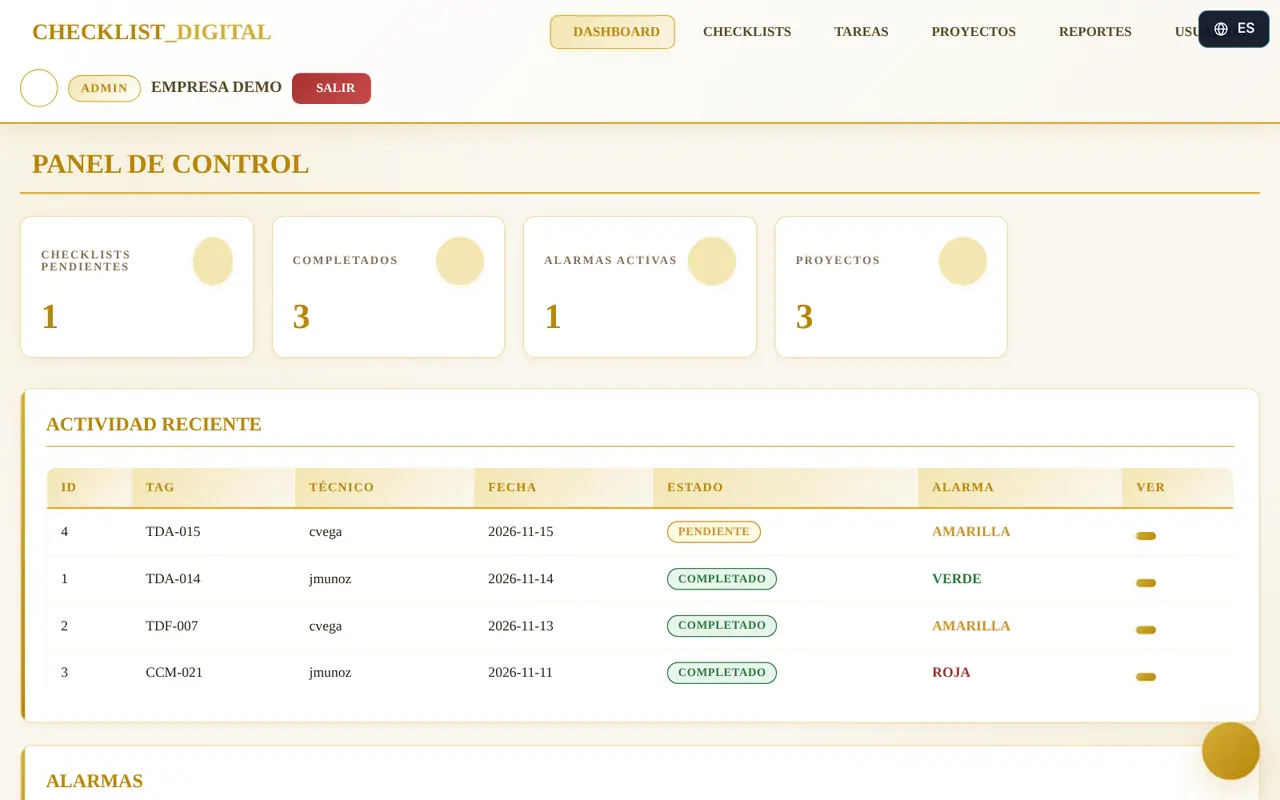
SoftMan main screen
Features

From on-site inspection to the complete report

Everything you need to inspect, document and follow up.

27-point checklist

Documentation, visual inspection, mechanical inspection and electrical tests with Yes, No or N/A and observations.

Automatic alarms

Green, yellow or red alarm according to the non-compliant items in each checklist.

Digital signature

On-screen signature to complete and record the work.

Photo evidence

Take the photo with the device camera and it stays in the checklist.

Report per asset

The report reproduces the panel's complete checklist, with answers, photo and signature.

PDF, Excel and print

Export or print the report for one asset or the summary of several.

Tasks and projects

Kanban board of assigned tasks and project management by team.

Chat and roles

Team chat and permissions for administrator, supervisor and technician.

Includes light and dark mode to work comfortably in any environment.

How to use · express

SoftMan in under a minute

Watch the steps like a short video. Tap right to go forward, left to go back, and press and hold to pause.

  1. Identify the equipmentEnter the TAG and fill in location, project, client and technician.
  2. Answer item by itemYES, NO or N/A for each of the 27 items. If you mark NO, write the observation.
  3. Photo and signatureAdd the evidence and sign from the same device.
  4. Report and assign tasksIf something is non-compliant, assign a task to the person in charge in one tap.
Guided tutorial

Practice on the SoftMan screen

We show you where to click and what to fill in on each screen. Move forward with the buttons, the keyboard arrows or by tapping the highlighted element.

Your first checklist in SoftMan

Inspect an asset, understand its alarm, back it up with photo and signature, and leave the fix assigned.

  1. Look at the control panelPending, completed, alarms and projects: you know what to tackle first.There is 1 active alarm that needs your attention.
  2. Read the alarms by colorGreen: no NO. Yellow: 1 to 3 NO. Red: more than 3. Prioritize without opening each checklist.TDA-015 is yellow.
  3. Press «+ CHECKLIST»Every inspection starts with the same 27-item structure.The asset form opens.
  4. Enter the asset TAGIt's required: it identifies the asset in its history and in the reports.See how it's filled in: TG-07.
  5. Mark «NO» on the item that failsEach NO adds to the asset's alarm; YES and N/A don't.The observations field opens.
  6. Write the observationWhoever fixes it will know exactly what to do, without calling you.«Busbar B bolt without torque mark.»
  7. Take the photo of the checked itemThe evidence avoids going back to the site to verify.The photo stays in the checklist.
  8. Sign with your fingerWithout a signature the checklist cannot be completed: it's your backup.The signature is stamped with date and time.
  9. Press «ASSIGN TASK»A NO without an owner fails again: the task ensures the fix.The task opens with the TAG already filled in.
  10. Choose owner, priority and due dateHigh priority and a due date: the fix doesn't get forgotten.C. Soto · High · 31-10-2026.
  11. Press «CREATE»The task appears for the owner in Tasks.«Task created» appears.
Full guide

How to use SoftMan, module by module

27-item checklists per asset, with observations, photo, signature, color alarms and tasks for each non-compliant item.

Before you start4 steps

How to access SoftMan from any device.

  1. Sign in to the platformGo to worksandworks.com and tap «Sign in» (top right). Enter your username and password.
  2. Open your profileAfter signing in you land on your company profile. Scroll down to «WAW Tools access».
  3. Open the toolTap the tool card and then «Open». It opens in a new tab; you can leave it open all day.
  4. Use it wherever you areWorks on phone, tablet and computer with the same user. Nothing to install.
Dashboard and alarms3 steps

Which assets need attention today.

  1. IndicatorsPending and completed checklists, active alarms and projects.
  2. Traffic lightGreen: no NO answers. Yellow: 1 to 3 NO. Red: more than 3 NO.
  3. Checklist tableTAG, technician, date, status and alarm; «View» opens the details.
Projects and assets2 steps

Organize assets by project.

  1. Create the projectTAG, project and client are required; rated V and rated I are optional.
  2. Check the listEach project shows client, location and actions.
Do a checklist6 steps

27 items in 5 groups, on site.

  1. Asset dataTAG (required), location, project, client, voltage, current and technician.
  2. Documentation (2 items)Drawings and diagrams; checklist documentation.
  3. Visual inspection (10 items)Nameplate, terminal and component identification, labels, cable markers, structure and wiring layout.
  4. Mechanical inspection (10 items)Paint, seals, doors and hinges, latches, bolts, busbar torque and terminals without loose wires.
  5. Electrical tests (5 items)Continuity, insulation (minimum 1 MΩ), busbar and control energization, and operational tests.
  6. Answer YES, NO or N/AIf you mark NO, write the observation.

Answer N/A only when the item doesn't exist on that asset; if it exists and fails, it's NO.

Evidence and signature3 steps

Without a signature the checklist cannot be completed.

  1. PhotoAdd the photo as evidence.
  2. SignatureSign with your finger on the phone or tablet.
  3. SaveThe checklist is completed with its alarm calculated.
Tasks4 steps

Every NO should end in a fix.

  1. Create the taskTitle (required) and description.
  2. AssignOwner (required), priority and due date.
  3. Link the assetEnter the TAG so it stays in the asset's history.
  4. Track progressPending, in progress and completed.
Reports and users3 steps

For supervisors and administrators.

  1. Filter the reportStart and end date, asset (TAG) and status (completed or pending).
  2. ExportDownload the complete report per asset.
  3. UsersAdd people with their existing WAW user, name, email and role: technician, supervisor or admin.

Still have a question? Message us on WhatsApp o request a guided demo.

Benefits

Consistent, traceable and easy-to-report inspections

  • Always the same standard every asset is checked against the same items.
  • Immediate alerts you know instantly when something fails.
  • Complete backup signature, photo and observations in a single document.
  • Role-based control each person sees what applies to them.
  • Reports with no extra work on screen, PDF, Excel or printed.

Built for

Electrical contractors Industry and manufacturing Maintenance Quality and safety Site supervisors

Available on

Phone Tablet Desktop In the cloud
WAW suite

Works better alongside other tools

Each solution is independent, but they share access and the same way of working.

Frequently asked questions

We answer your questions

What does the checklist include?

Twenty-seven items in four sections: documentation, visual inspection, mechanical inspection and electrical tests, with observations per item.

How do the alarms work?

Depending on the number of non-compliant items, the checklist gets a green, yellow or red alarm, shown on the dashboard and in the reports.

Does the report only show a summary?

No. When you select a piece of equipment, the report reproduces the full checklist with every answer, observation, photo and signature.

What roles are there?

Administrator, supervisor and technician. Each role only accesses the sections that apply to it.

Contact

Let's talk about SoftMan

Tell us about your case and we'll show you the tool working with your operation. No commitment.

WhatsApp Request a demo