Skip to content
Works And Works
ALL IN ONE ERP + Virtual Office

The ERP that brings your team together

Sales, invoicing, purchasing, inventory, finance, people and contracts signed online, with file cloud, chat with calls, tasks and a 3D office with your logo. One app, one password, your brand.
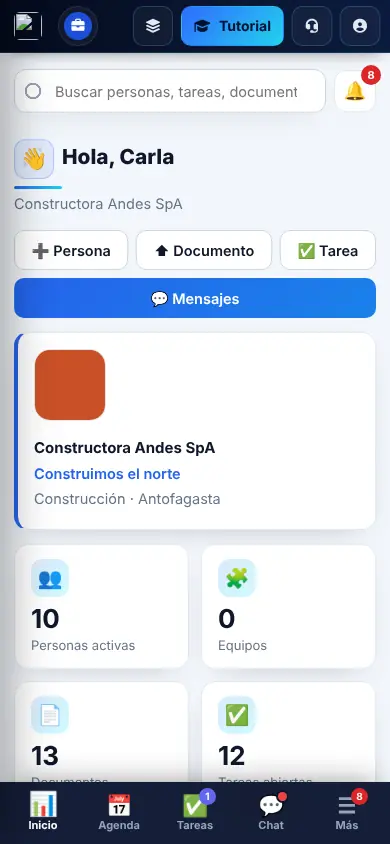
✅ +30 modules✍️ Online signature☁️ Private cloud🏢 3D Office
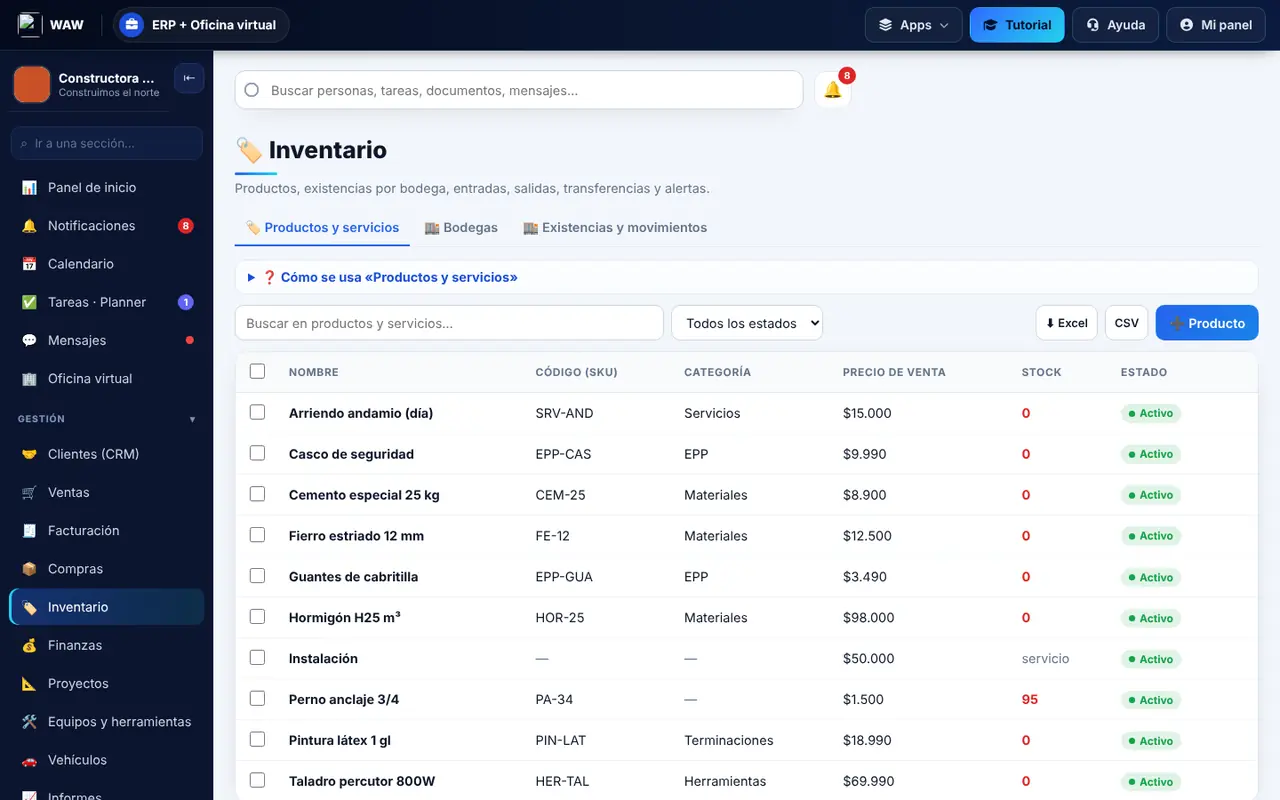
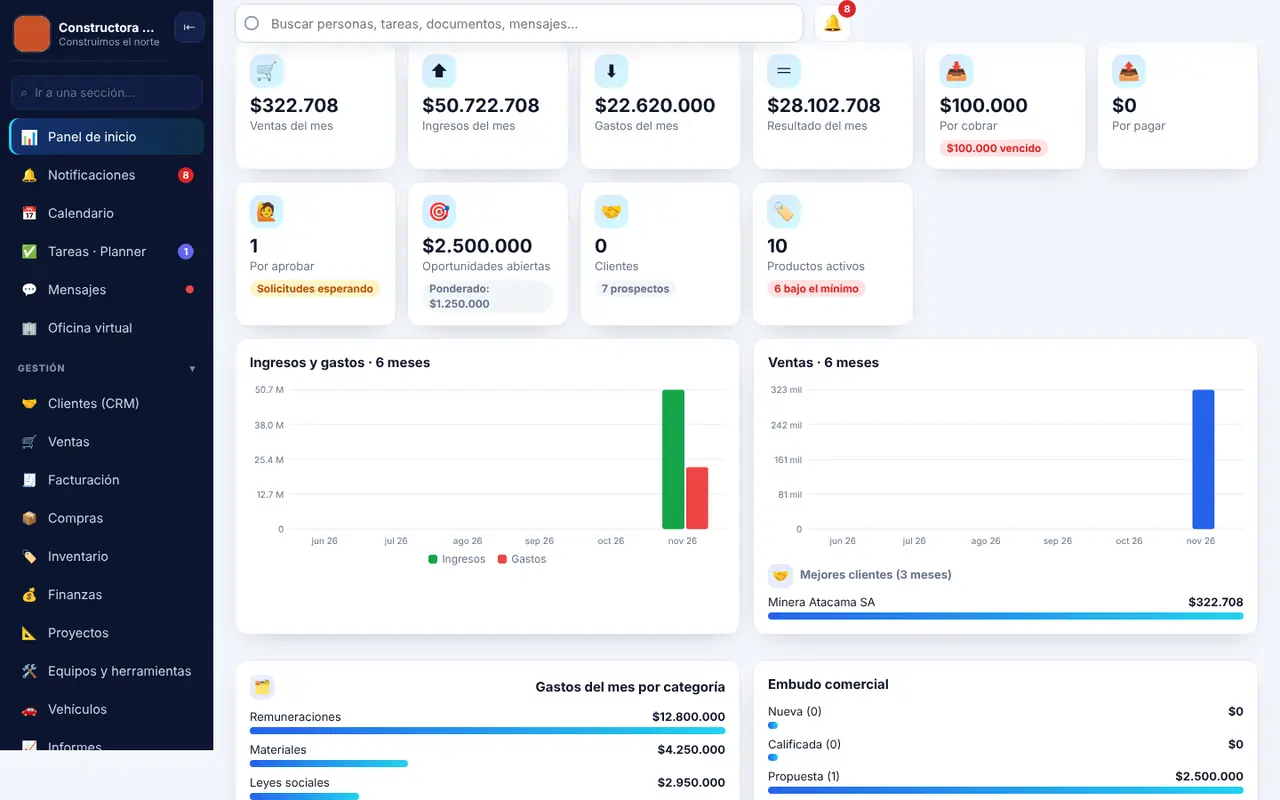
ERP home dashboard
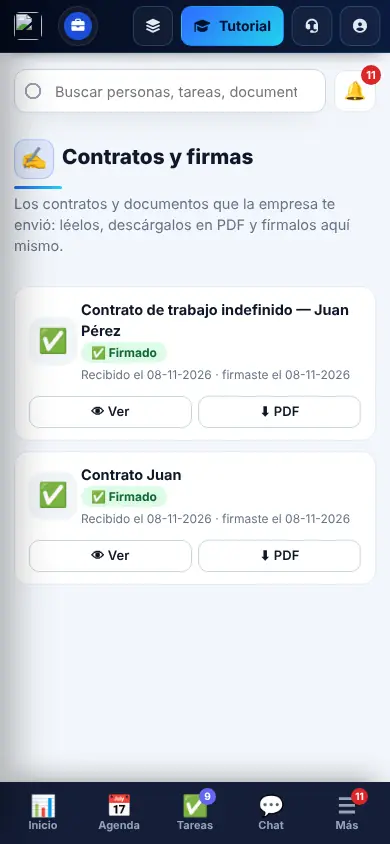
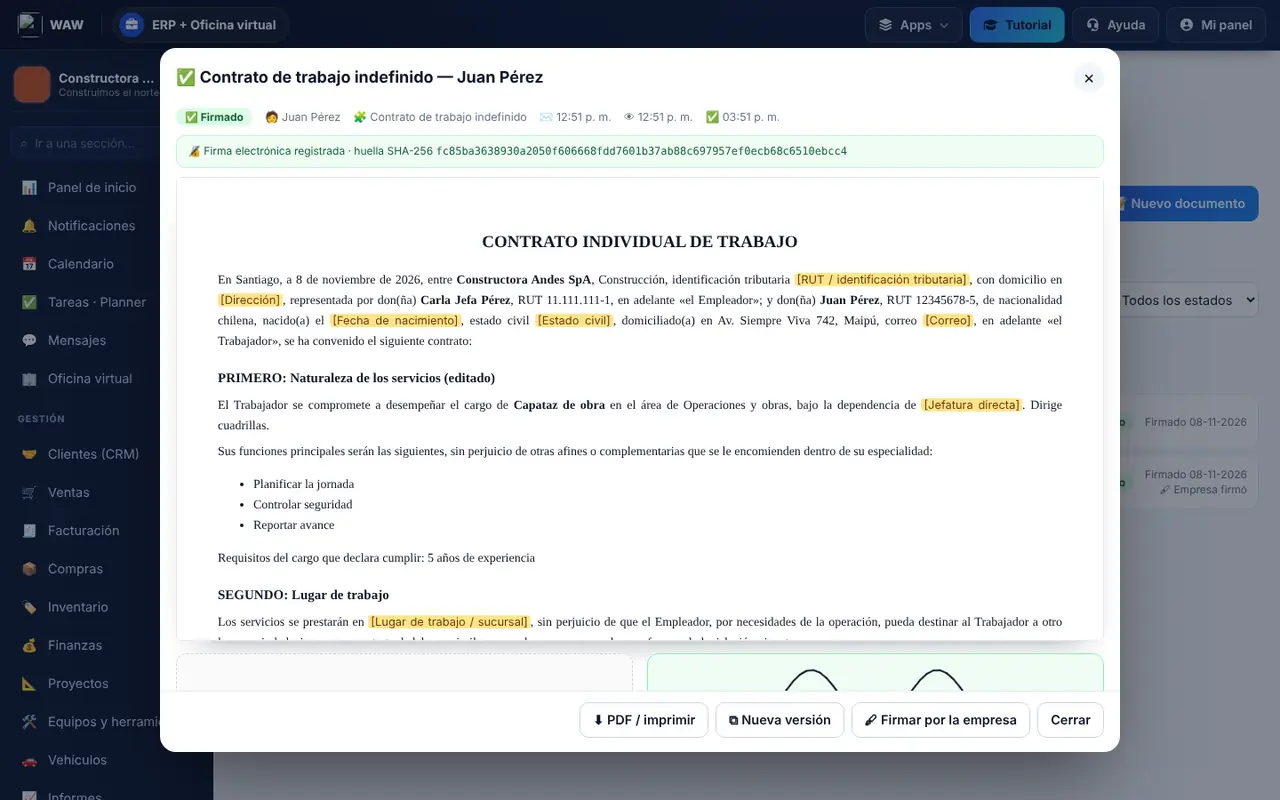
Contract signed in the ERP
Sign from your phone
SignedPermanent contract
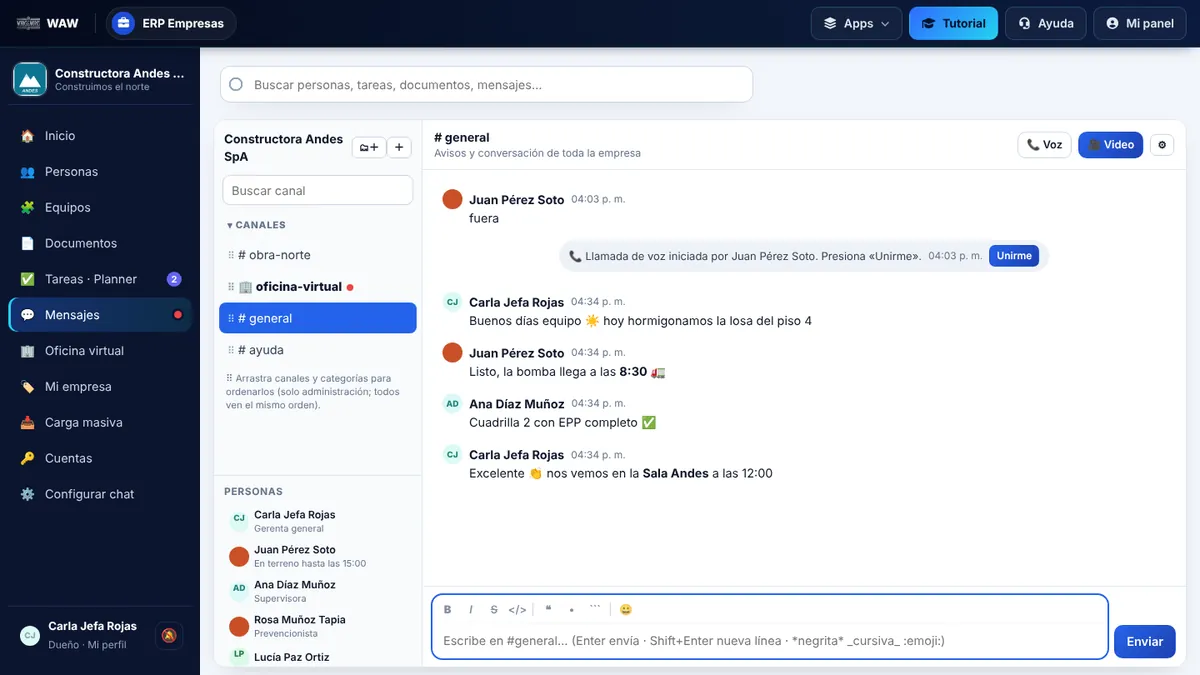
#general«I'll be there in 5 min 🙌»
Site drawingsshared with 3
Why is it needed?

An ERP organizes the numbers. The virtual office brings people together.

Companies lose hours searching for files, chasing signatures and scheduling meetings for quick questions. With the ERP and the office in the same app, data and conversations live in the same place.

😩 Today

  • Sales in one spreadsheet, expenses in another and stock «from memory»
  • Word contracts that get printed, signed and scanned
  • Files scattered across emails, WhatsApp and someone's PC
  • A scheduled meeting for a two-minute question
  • Nobody knows who is busy or with what
  • 6 different apps and none of them talk to each other

😎 With ERP + Virtual Office

  • Sales, purchasing, inventory and finance connected: the dashboard updates itself
  • A complete contract in minutes, sent and signed from a phone
  • An organized cloud: private, company-wide or shared with whoever you choose
  • Walk up to someone in the 3D office and talk, just like in the hallway
  • See who is in, in which room and what task they are on
  • One app, one password, your logo everywhere
Everything included

More than 40 features in one app

Turn on the ones you need and the menu organizes itself. Your lists, categories and custom modules adapt to your industry.
Sales management

Clients and leadsCRM
Opportunitiesfunnel
Follow-upcalls and visits
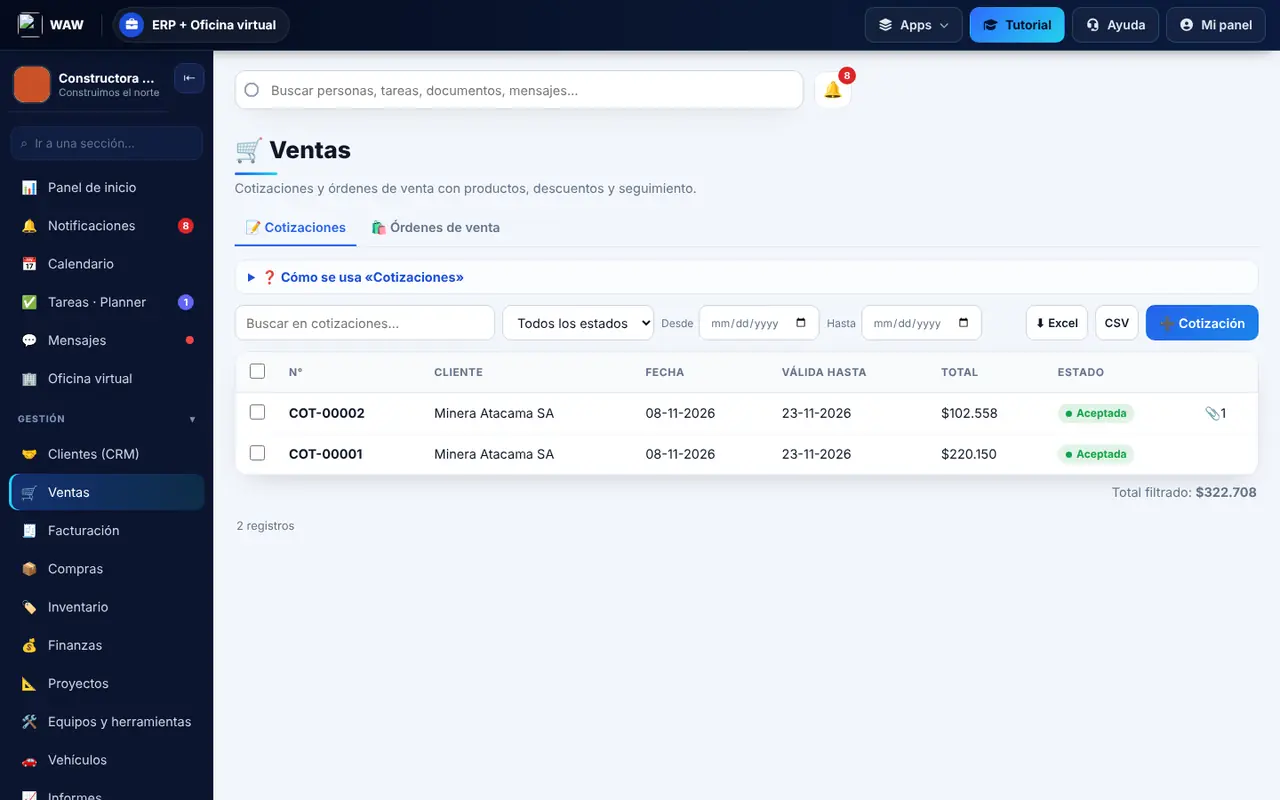
QuotesPDF with your logo
Sales orders
Invoices and receipts
Credit notes
Payments received

Purchasing and inventory

Suppliers
Purchase requestswith approval
Purchase orders
Goods receiptsadd to stock
Bills received
Supplier payments
Products and services
Warehousesminimum stock

Finance and projects

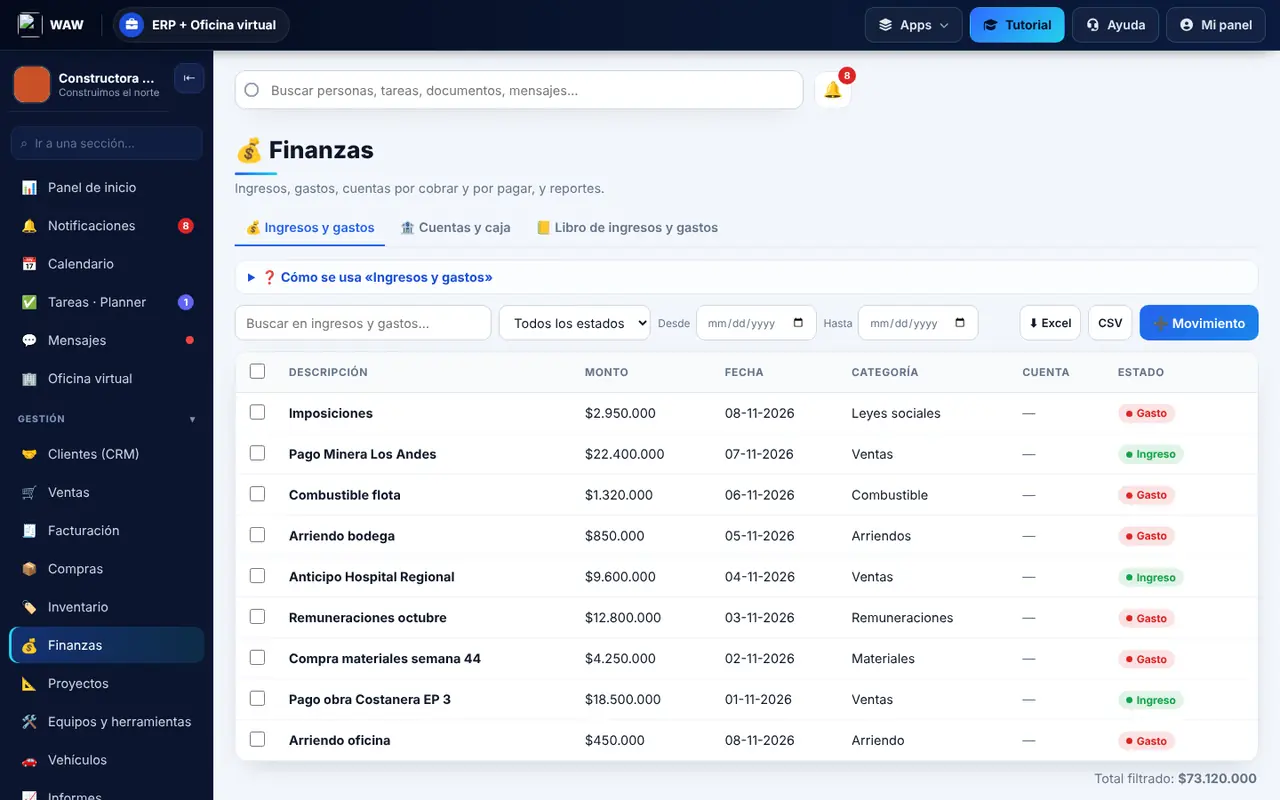
Income and expenses
Accounts and cash
ReportsExcel and PDF
Projectsbudget vs actual
Equipment and tools
Vehicles
Branches
Multiple currencies

People

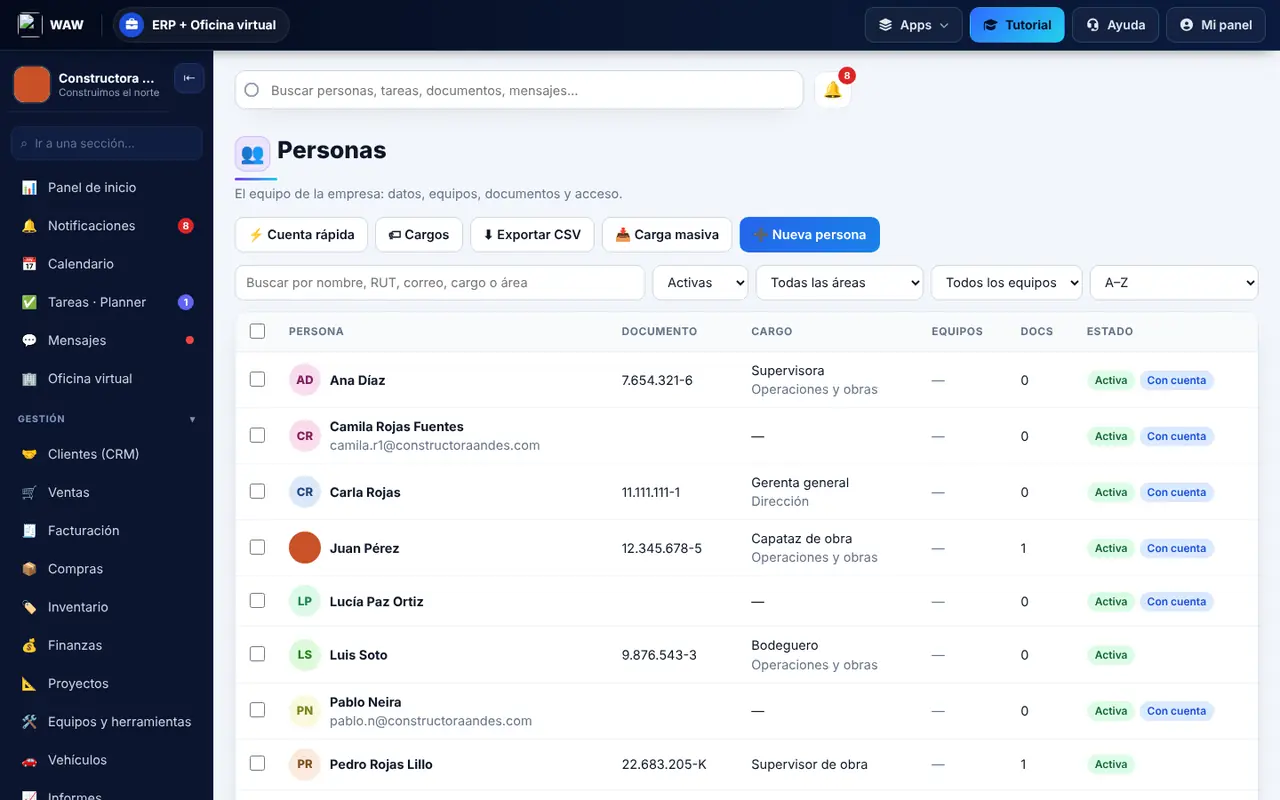
Peopleprofile and documents
Job rolesduties and requirements
Contracts and signaturesnew
Attendancein one tap
Schedules and shifts
Leave and time offwith approval
Payroll
Teams

Collaboration

File cloudnew
Channel chat
Audio and video calls
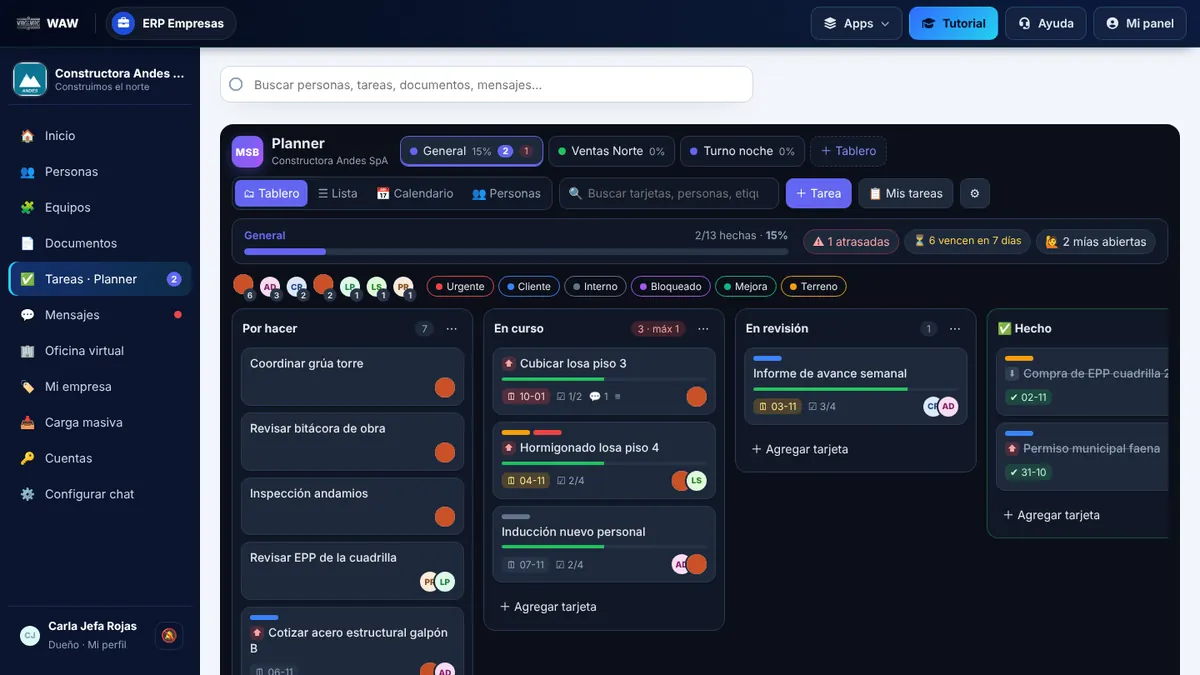
Task PlannerTrello-style
Calendar
3D Virtual Officewith your logo
Notificationswith a soft sound
Phone and tablet

Settings

Areas and categoriesnew
Automationsrules that notify
Bulk uploadfrom Excel
Roles and permissions
API and webhooks
Your brandlogo and color
Own access/erp/tu-empresa
Real screenshots

Look inside

Home dashboard: Monthly sales, income, expenses, receivables and payables, 6-month charts and sales funnel.

New

Complete contracts, signed online

Choose the template and the person: the contract comes out complete with their data, your company's and their HR contract. Change whatever you want and send it.

  • 6 ready templatesPermanent, fixed-term, project-based, freelance, addendum and confidentiality. Or create your own.
  • Automatic fieldsName, ID number, job role, duties, salary in figures and words, working hours, location…
  • Sign with your fingerName, date, IP and SHA-256 fingerprint of the text. The company signs too.
  • PDF readyWith both signatures and the verification record.
New

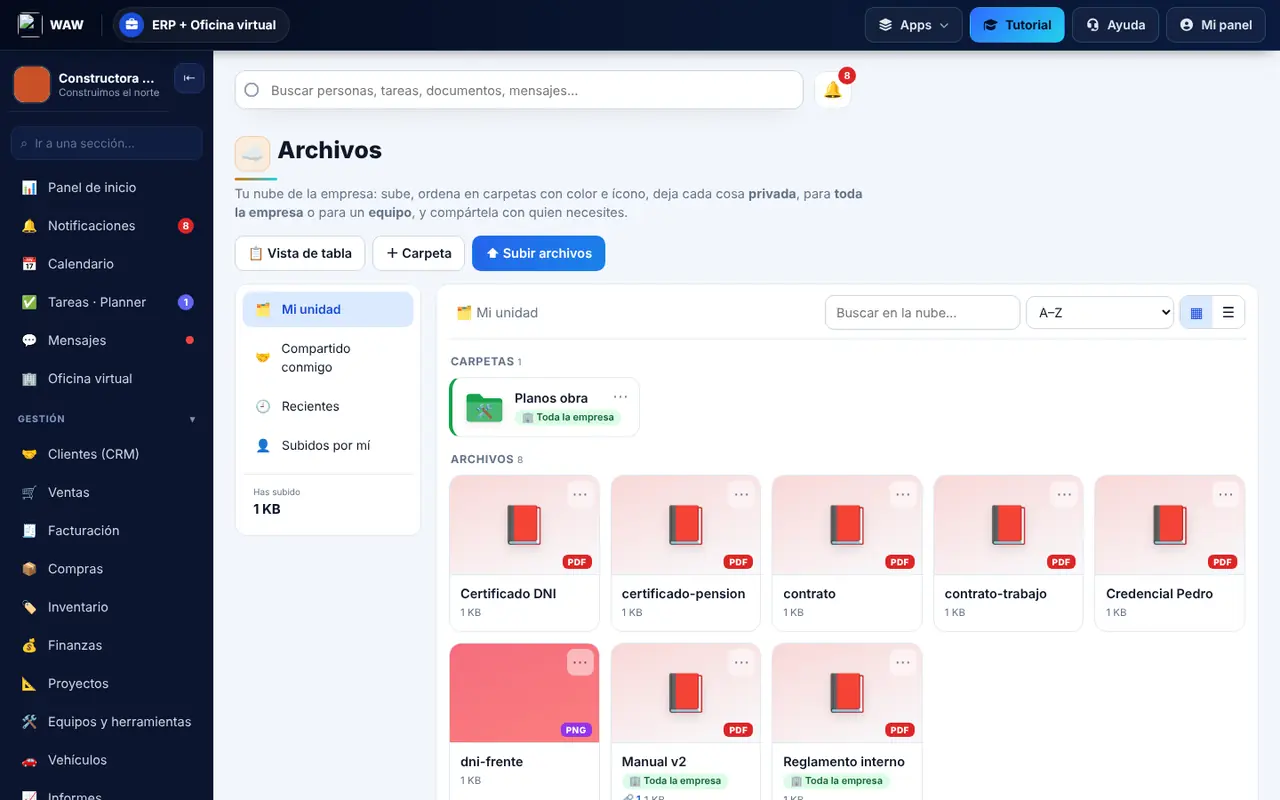
An organized cloud for your company

Like a cloud drive, but inside your ERP: each person uploads their files and decides who sees them.

  • Private by defaultNot even the admins see others' private files unless they're shared.
  • Share with peopleView or edit. Sharing a folder shares everything inside it.
  • Color and iconFolders and files easy to recognize, in grid or list.
  • Drag and dropTo upload from your computer and to move into a folder.
File cloud with folders
Included · formerly «3D Virtual Office»

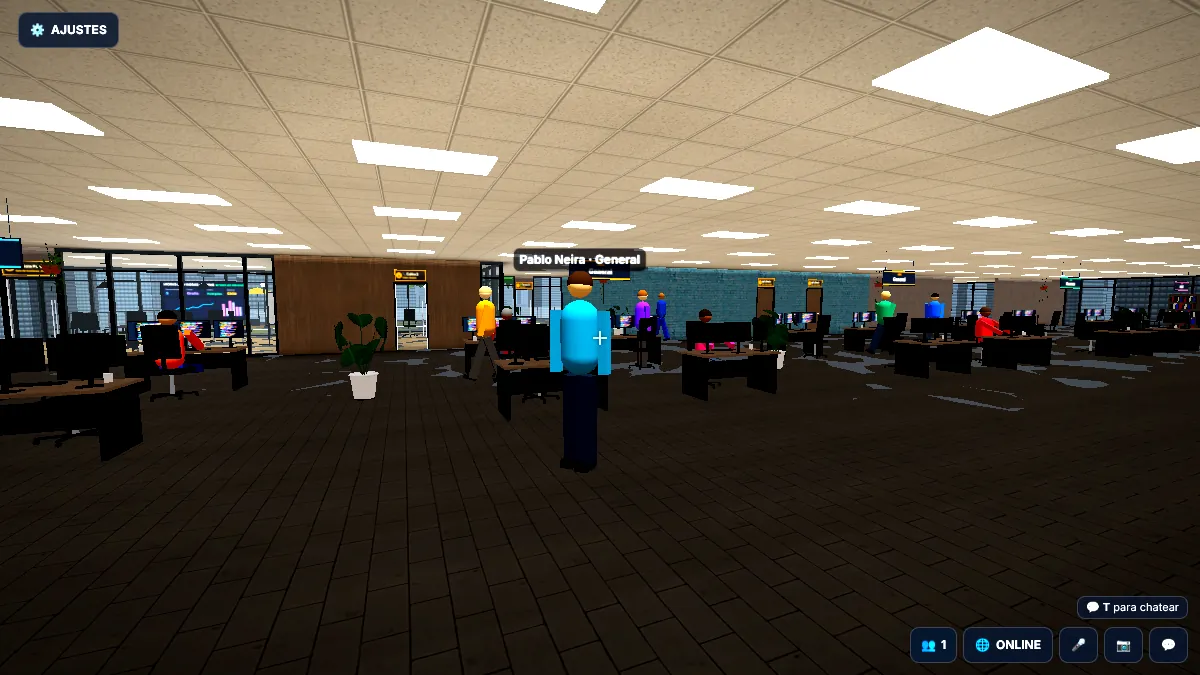
Your 3D office, inside the ERP

See who's in, walk up and talk. Enter a room and the meeting stays inside. Go to Messages or the Planner and come back: the office stays connected.

With your brand

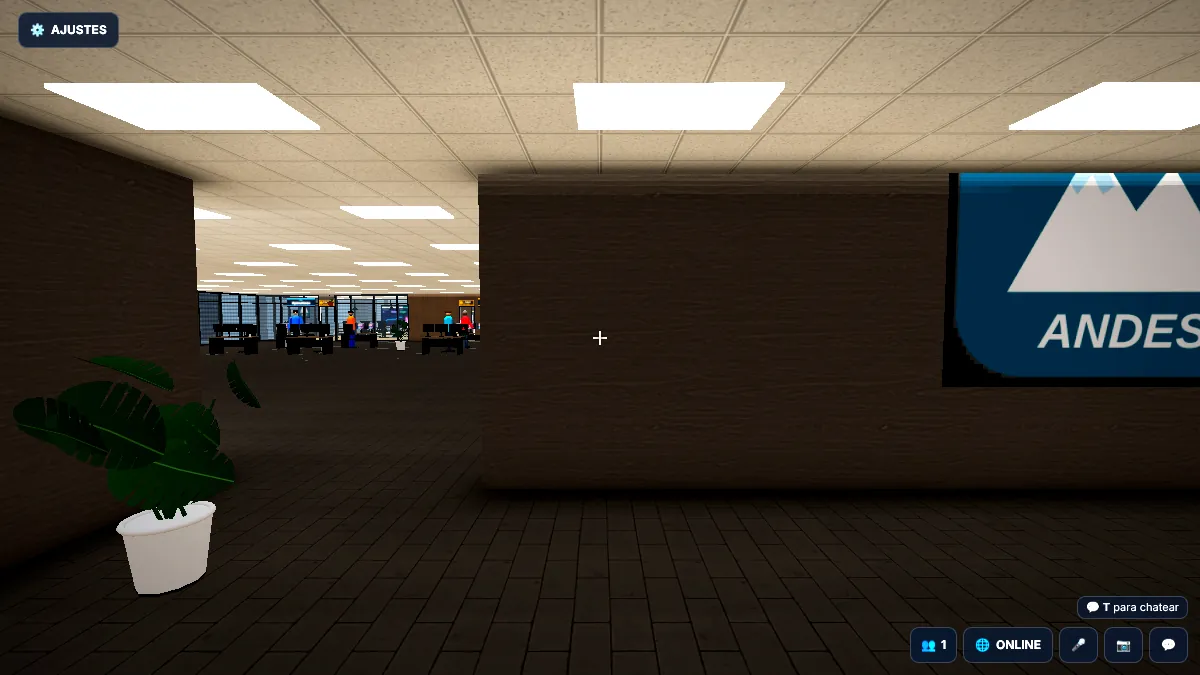
Logo at reception and on the walls, tagline, description and your company color.

Walk around and meet

Keyboard, mouse or joystick on your phone. See who's in and in which room.

Proximity voice and video

Those nearby can hear you. In a closed room, only those inside.

Chat linked to the ERP

Every message goes to #virtual-office in the ERP, and vice versa.

What's new

Always improving

Nov 2026Contracts with signature and file cloud

Complete templates, editor, hand-drawn signature with fingerprint; cloud with private, public and shared.

Nov 2026Areas and categories, roles with duties

Lists with «+ New…» in every form.

Nov 2026Own access and ERP-only

worksandworks.com/erp/your-company with a temporary password and sign-out to your own page.

Nov 2026Icons, validation and sounds

Clearer forms, soft-sound notifications and a design for phone, tablet and computer.

Nov 2026Planner + calendar

Tasks with date ranges and company events in the same calendar.

Nov 2026Complete management

CRM, sales, invoicing, purchasing, inventory, finance, projects, HR, automations and API.

How to use · express

ERP + Virtual Office in under a minute

Watch the steps like a short video. Tap right to go forward, left to go back, and press and hold to pause.

  1. See your company on one dashboardMonthly sales, income, expenses, receivables and payables, 6-month charts, projects and your agenda.
  2. Add your teamFirst and last name: the username and sign-in email are built automatically (maria.gonzalez27@yourcompany.com) and you choose the password.
  3. Upload their documentsIn each section of their profile (ID, contract, social security and health…) drag one or more files and preview them before saving.
  4. Talk in channels#general, #virtual-office and the ones you create. Emojis, *bold* and audio or video calls.
  5. Assign Trello-style tasksDrag the card to «Done»: each person's progress updates live.
  6. Sign and shareComplete contracts your team signs online and a cloud with private or shared files.
  7. Enter your 3D officeLogo at reception, proximity voice and video and meeting rooms, nothing to install.
  8. Meet with a linkPrivate room with a giant screen, whiteboard and chat; guests without an account with a waiting room.
Guided tutorial

Practice on the ERP + Virtual Office screen

We show you where to click and what to fill in on each screen. Move forward with the buttons, the keyboard arrows or by tapping the highlighted element.

Your first week with the ERP + Virtual Office

Check the home page, add a person with their account and documents, talk in the chat, assign a task and enter the virtual office.

  1. See your company's brandLogo, name and tagline stay at the top: the whole team knows where they are.«Andes Construction · Building the north».
  2. Check the indicatorsPeople, teams, documents about to expire and overdue tasks at a glance.3 documents expire this month.
  3. Press «+ Person»Each team member with their data and their own access.The new profile opens.
  4. See the suggested username and emailThey're built from first and last name (user@yourcompany.com) and checked to be unique: nobody makes up usernames.maria.gonzalez27 · available ✓
  5. Check the documents checklistYou know what's missing for each person without opening folders.The pre-employment medical exam is missing.
  6. Press «⬆ Upload documents»Several files at once, each in its category.«3 documents uploaded» appears.
  7. Choose a channelConversations stay organized by topic, not in a WhatsApp group.#general · #virtual-office · #north-site.
  8. Send a message with *bold* and 🎉Formatting highlights what matters.The message is sent with bold and emoji.
  9. Press «+ Task»Title, people, due date and priority in one step.The card appears in «To do».
  10. Drag the card to «Done»Progress updates automatically for the whole team.«🎉 Task done».
  11. See each person's progressOpen, overdue and done: you know whom to support.John has 1 overdue.
  12. Press «Enter the office»Your 3D office inside the ERP, without losing the sidebar.Reception opens with your company logo.
Full guide

How to use the ERP + Virtual Office, module by module

One app for your whole business: sales and CRM, invoicing, purchasing, inventory, finance, people and HR, e-signed contracts, file cloud, chat with calls, task Planner and your 3D virtual office.

Before you start4 steps

How to access the ERP + Virtual Office from any device.

  1. Enter through your company's pageEach company has its own address: worksandworks.com/erp/your-company, with its logo. Enter your username (or email) and password.
  2. Or from your profileIf you go to worksandworks.com → «Sign in», scroll down to «WAW Tools access» and tap «ERP + Virtual Office».
  3. First timeYour account comes with a temporary password: when you sign in it asks you to create your own. Then you'll see a welcome tour.
  4. Use it wherever you arePhone, tablet or computer with the same user. Nothing to install.
Create your company (new account)4 steps

If you signed up or paid for your plan, your ERP welcomes you with a single form.

  1. Enter the ERPFrom «My dashboard» → ERP + Virtual Office (or via the welcome email).
  2. Complete your companyName or legal name, tax ID, line of business, city and the access address worksandworks.com/erp/your-company.
  3. «🚀 Create my company»You become the owner and the step-by-step guide opens to get everything running.
  4. Invite your teamPeople → «Quick account»: each person signs in through your company's address with their user.

You can change everything later in «My company».

Your company's own access4 steps

Your team signs in at worksandworks.com/erp/your-company and only sees the ERP.

  1. Sign inUsername or email and password on your company's page, with your logo.
  2. Temporary passwordIf you received a temporary password, change it right there and go straight into the ERP.
  3. My profile and Sign outAt the top: «My profile» opens your ERP profile and «Sign out» goes back to your company's page.
  4. Session expiredIf the session ends, you go back to your company's page, never to another part of the site.

You choose the address in «My company» → Access address.

My company (settings)6 steps

Name, logo, tagline, description and your own address: shown in the ERP, the chat, the 3D office and your access page.

  1. Go to «My company»In the sidebar (owner or administrator). If your company was created automatically when you signed in, it opens here first so you can enter its real name.
  2. Adjustable logoUpload it and adjust it before saving: move, zoom and rotate. It's saved square and sharp.
  3. Name, tagline and descriptionThe legal or trade name (never your username), a short tagline, what it does and your brand color.
  4. Custom addressworksandworks.com/erp/your-company: suggested from the name and checked live to make sure it's free.
  5. PreviewSee how the sidebar and access page look before saving.
  6. Unique companiesTwo identical companies can't be registered: the name is compared ignoring accents and legal suffixes, along with the tax ID and the address.

Upload the logo as a PNG with a transparent background: it looks better at the 3D office reception.

People and accounts6 steps

Your team with their data, photo and own access.

  1. Add a personFirst name, last names, ID or document, job role (from your list of roles), area and start date.
  2. Create their account in the same stepCheck «Create their access account»: the username and email are built automatically (user@yourcompany.com) and checked live to be unique.
  3. PasswordGenerate a secure one or set it yourself (10+ characters, uppercase, number and symbol) and choose whether it must be changed at first sign-in.
  4. ⚡ Quick accountName, job role and access in one step: creates the person and their account; ID and documents are completed later.
  5. Send their linkEach account receives worksandworks.com/erp/your-company?u=their-user with their password.
  6. Choose their roleMember, Team lead, Administrator or Owner (see «Roles and permissions»).
Profile and documents7 steps

Everything about each person, private and organized.

  1. Complete profilePersonal data, contract and job, social security, health insurance and payment, emergency contact and sizes. International concepts: works in any country. Only the admins and the person themselves can see it.
  2. Company job rolesPeople → 🏷 Roles: name, category and description of duties. When creating a person you choose the role from a list.
  3. Documents in each sectionWhen creating or editing a person, each section has its own file zone: one or several, with thumbnail and instant preview. Existing ones can be viewed, edited, replaced (new version) or deleted right there.
  4. Documents checklistContract, ID document, photo, CV, social security, health insurance, background check, medical exam and bank: see at a glance what's missing and upload it in one click.
  5. Custom sectionsDocuments → 📂 Sections: create the ones your company needs (accreditation, client induction…), with description, required and with expiry.
  6. Multiple uploadDrag several files: each one gets its category guessed from the name, title and expiry.
  7. Expiry datesHome shows the documents expiring within 30 days.
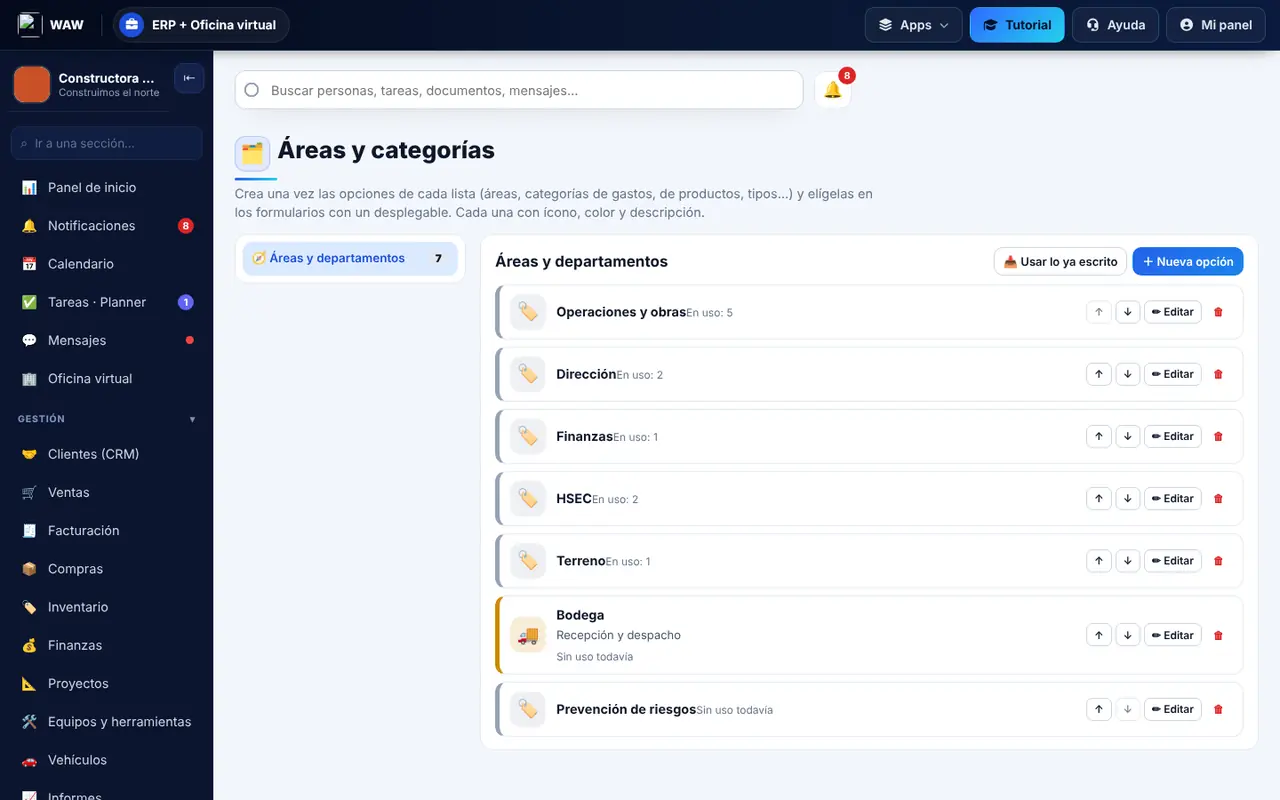
Areas and categories4 steps

The company lists in one place, to pick them from a dropdown.

  1. Open the sectionMenu → «🗂️ Areas and categories».
  2. Create optionsAreas, expense categories, products, contract, leave or event types… with icon, color and description.
  3. Use them in formsEach list has «+ New…»: create the option right there and it gets selected.
  4. Rename or reorderWhen renaming you can also change it where it was already used; use ↑ ↓ to set the order.

«📥 Use what's already written» builds the list from what you already had in profiles and records.

Job roles with duties3 steps

Each role with its area, description, duties and requirements.

  1. People → «💼 Roles»Create the role and choose its area from the list.
  2. FeaturesWrite one duty per line; they appear in the profile of each person with that role.
  3. Requirements, icon and colorThey help recognize the role and appear in contracts.

Duties appear as a list in contracts with {{cargo.funciones}}.

Home dashboard4 steps

The state of your company at a glance.

  1. IndicatorsSales this month vs last, income, expenses, result, receivables (and overdue), payables, pending approvals, opportunities and low stock.
  2. Charts6-month income and expenses, sales by month, top clients, expenses by category and sales funnel.
  3. Agenda and projectsWhat's coming in 7 days and the progress of each project.
  4. Quick createQuote, invoice, expense, client, event, leave or purchase request in one tap; and «Clock in / out».
Clients and sales5 steps

From lead to invoice without retyping.

  1. Clients and contactsTax ID (RUT, NIT, RFC, CUIT, VAT/TRN…), payment terms and account manager. Their profile shows their full history.
  2. Opportunities«Funnel» view: drag each deal between stages; the weighted amount comes from the probability.
  3. Follow-upCalls, meetings and visits with a «next action»: it shows up in the calendar and reminds you.
  4. QuoteProducts or services with quantity, price, discount and tax; live totals. Download it as PDF.
  5. Convert«➜ Sales order» or «➜ Invoice» copies client and lines. When the order is delivered, stock is deducted.
Invoicing and collections4 steps

Invoices, receipts, credit notes and payments.

  1. IssueThe invoice calculates the due date from the client's payment terms. With «Deduct stock from» it reduces the warehouse.
  2. Record the payment«💵 Record payment» suggests the balance: the invoice moves to «Partially paid» or «Paid» and the income goes to Finance.
  3. Credit notesChoose the invoice you're correcting: its balance goes down automatically.
  4. PDF«🖨 PDF / print» with your logo, data, lines and totals.
Purchasing and inventory5 steps

Buy just what you need and know what you have in each warehouse.

  1. Purchase requestAnyone on the team requests what they need; admins approve or reject and the person is notified.
  2. Purchase orderSupplier, products and destination warehouse. Above the approval amount it stays «Pending approval».
  3. Goods receipt«➜ Receipt» brings only what's still to be received and adds the stock; the order moves to «Received».
  4. Bill received and paymentIt goes into payables, reminds you before it's due and the payment goes to Finance.
  5. StockStock per warehouse, minimum alerts and movements: receipt, issue, count adjustment and transfer.
Finance4 steps

Everything that comes in and goes out, without recording it twice.

  1. Income and expense ledgerIt gathers collections, retail sales, supplier payments, paid payroll and whatever you record manually.
  2. Accounts and cashBanks, cash boxes and cards with their calculated balance.
  3. Receivables and payablesAging reports: current, 1-30, 31-60, 61-90 and over 90 days.
  4. Multiple currenciesEach document in its own currency; reports convert to the main one with your exchange rate.
Human resources4 steps

Contracts, attendance, schedules, leave and payroll.

  1. ContractsType (permanent, fixed-term, project-based, part-time, independent…), role, dates, pay, schedule and branch; reminds you before it ends.
  2. AttendanceEach person clocks in and out with one tap; lateness is calculated with their schedule's tolerance.
  3. Leave and time offThe person requests it, admins approve and it goes on the calendar. Only business days count.
  4. PayrollEarnings minus social security, health insurance, income tax and other deductions: net pay is calculated automatically. Each person sees and prints only their own.
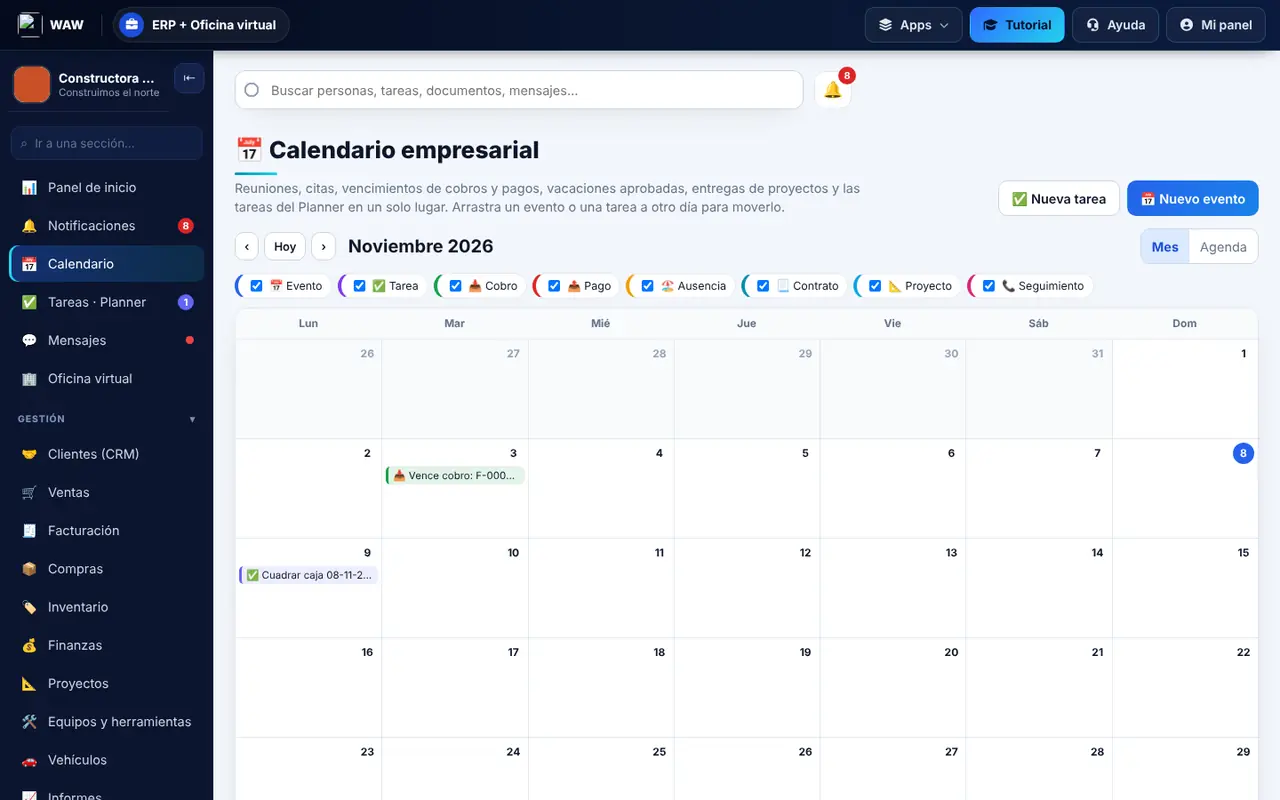
Projects and calendar4 steps

Linked to the Planner.

  1. ProjectClient, owner, dates, budget and priority. Creates its board in the Planner; progress comes from its tasks.
  2. Company calendarMeetings, appointments, collection and payment due dates, approved leave, contracts, deliveries and Planner tasks. Filter by type.
  3. Drag to moveEvents and tasks to another day; double-click a day to create an event or a task.
  4. GuestsChoose participants: they get the notice and a reminder before it starts.
Reports3 steps

Statistics with filters and download.

  1. Choose the reportSales, income and expenses, receivables, payables, purchases, valued inventory, funnel, attendance, leave, payroll and tasks.
  2. FilterThis month, last month, quarter, year or custom dates; group by month, client, product, salesperson or category.
  3. DownloadExcel (.xlsx with totals), CSV or PDF. Every ERP list also exports what you have filtered.
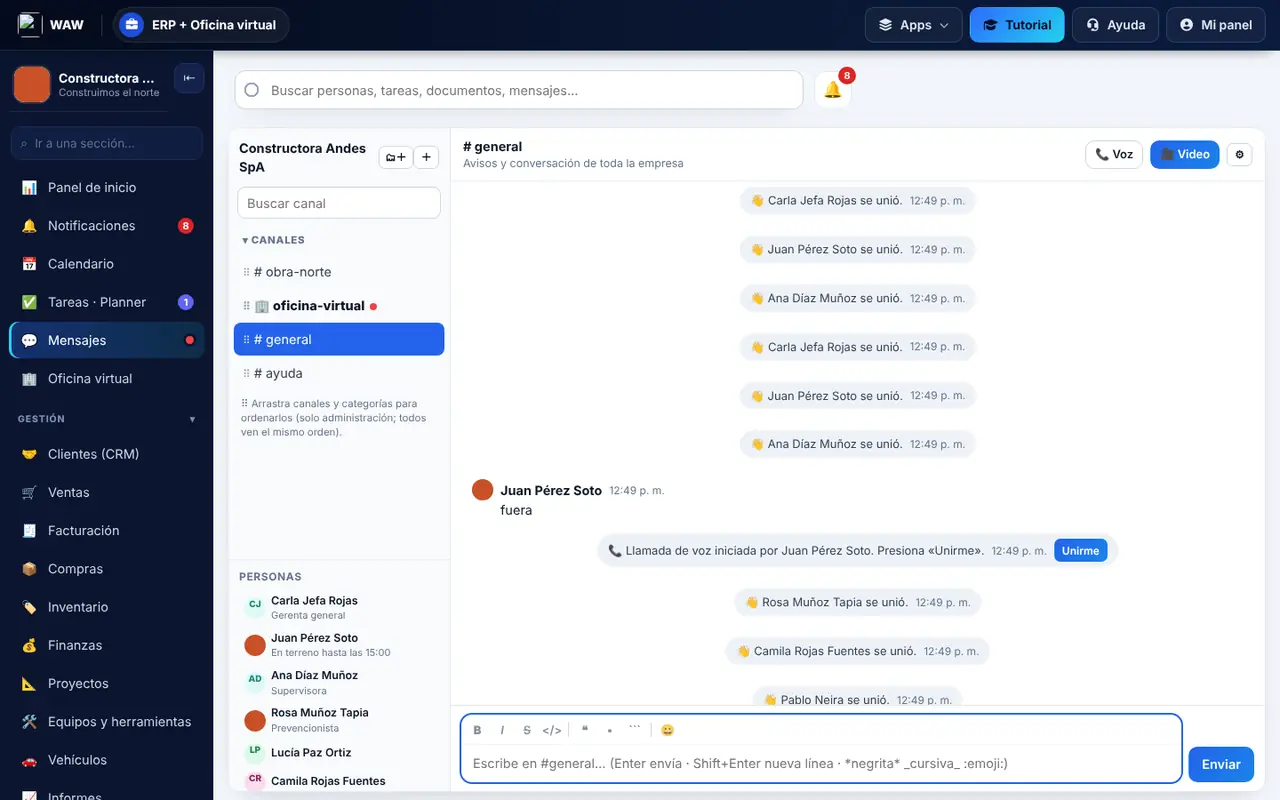
Messages and calls6 steps

A Slack-style chat for your company.

  1. Channels#general and #virtual-office are required; create other public or private ones and add people by typing their name or @user.
  2. Categories and orderGroup channels into categories and drag to reorder them (owner and admins only: everyone sees the same order).
  3. Direct messagesTap a person to message them privately.
  4. FormattingEmojis, *bold*, _italics_, ~strikethrough~, `code`, quotes and lists.
  5. CallsAudio or video from the channel. Works on the phone.
  6. Each person's cardRole, status and where they are: 🟢 in the office, 🔴 in a meeting, 📍 which room, 📞 on a call.
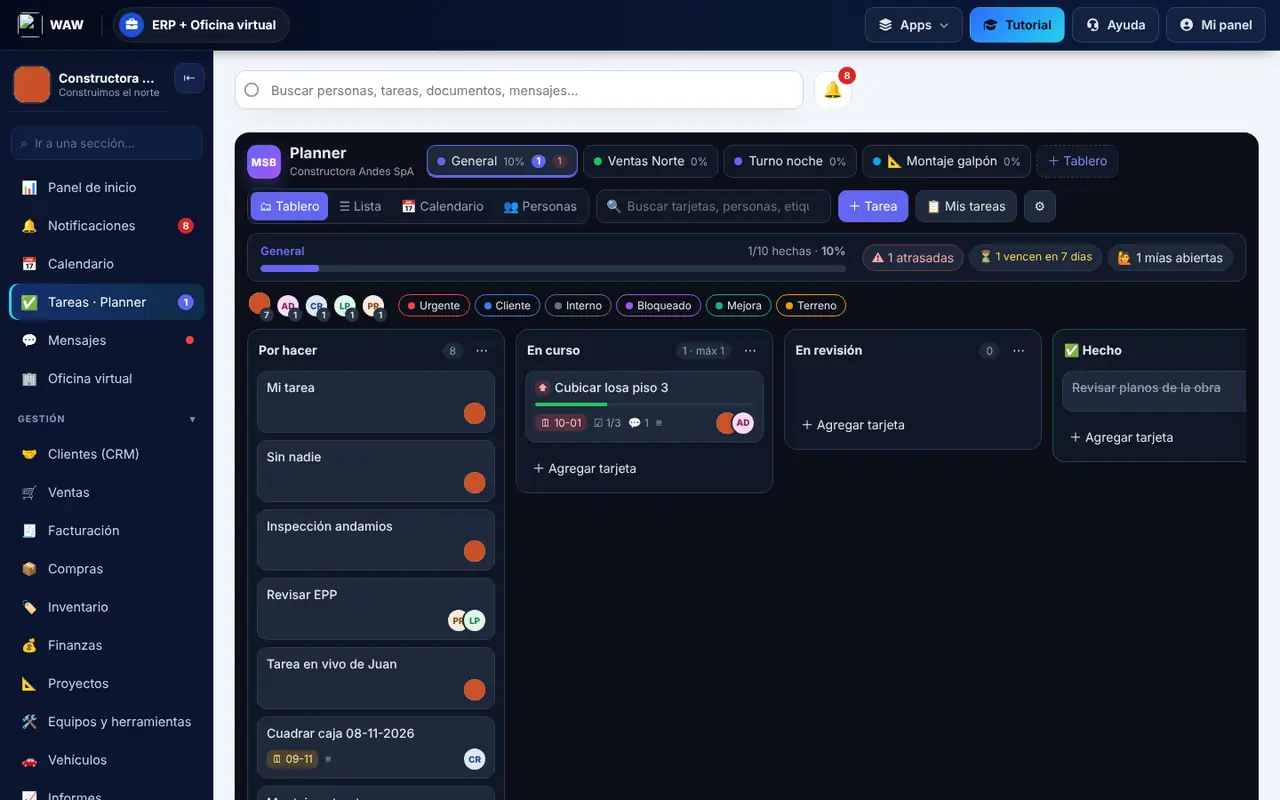
Planner (Trello-style tasks)6 steps

Boards with columns to assign and track work.

  1. Create a boardTemplates: Kanban, Simple, Project, Sales and Support. Choose the color and who sees the cards.
  2. New task«+ Task»: title, column, several people with photo, due date, priority and details. Also «👤 Assign» when adding quickly to a column.
  3. Drag and dropMove cards between columns (on the phone: press and hold). In «Done» it's finished.
  4. Card detailsChecklist with %, labels, dates, formatted comments and change history.
  5. ViewsBoard, List, Calendar (drag to another day to change the due date) and People.
  6. ProgressIn People you see how many cards each one has open, overdue and done, with their %.

Set a limit per column (for example, max 3 in «In progress») so half-done work doesn't pile up.

Notifications and automations5 steps

Stay on top of what matters without the ERP getting in the way.

  1. Notification centerThe 🔔 bell gathers payments and collections coming due, overdue tasks, pending requests, new documents, invitations and messages.
  2. Automatic rulesThey come ready and you can create your own: «when an invoice is due in 3 days → notify the admins», «every Monday → create a task in the Planner».
  3. Measured soundsShort, soft tones when saving, on an error, with a new message, a task assigned to you or a call.
  4. No overloadNever back to back, nothing when opening the page and, during a call, only the call alert.
  5. You decideNext to your name: 🔔 normal, 🔉 low or 🔕 off.
Settings and integrations4 steps

Adapt the ERP to your country and connect it to other systems.

  1. Currencies and taxesMain currency, other currencies with their exchange rate, tax name and rate (VAT, IVA, IGV, GST…) and whether your prices include it.
  2. SettingsPayment terms, quote validity, amount requiring approval, business days, numbering prefixes and PDF footer.
  3. Active modulesHide what you don't use without deleting data.
  4. API and webhooksRead-only API key for your website or BI, and automatic sending of new records to Zapier, Make, n8n or your accounting system.
Custom modules3 steps

What your company needs that doesn't come in the ERP.

  1. Create itCustom modules → «➕ New module»: name, icon, description, categories and statuses.
  2. Your fieldsText, number, amount, date, list, yes/no, email, link, person, customer, supplier or product; required and visible in the list.
  3. Use itIt appears in the menu with its list, search, filters, attachments and export; its date can go to the calendar.
Roles and permissions4 steps

Each person sees and does what's theirs.

  1. MemberUses chat, sees the directory, their profile, tasks and calendar. Requests leave and purchases, clocks in and sees their pay.
  2. Team leadAlso creates boards and tasks for anyone, and works in CRM, sales, purchasing, inventory and projects. Doesn't see finance or manage people.
  3. AdministratorManages everything: people, documents, accounts, finance, approvals, settings and chat.
  4. OwnerFull control of the company, including «My company»: name, logo and access address.
Contracts and signatures6 steps

Complete contracts in minutes, editable and signed online.

  1. Templates«✍️ Contracts and signatures» → Templates: permanent, fixed-term, project, freelance, addendum and confidentiality, or create your own.
  2. Automatic fieldsWith «+ Field» you insert {{persona.nombre}}, {{contrato.sueldo_letras}}, {{cargo.funciones}}… which fill in automatically.
  3. Generate the document«📝 New document»: template + person (+ their HR contract). Anything missing is highlighted in yellow.
  4. Edit whatever you wantAll text is editable before saving or sending.
  5. Send«✉️ Save and send»: the person gets a notification and sees it in «Contracts and signatures».
  6. Company signature«🖋 Sign for the company» adds the representative's signature; the PDF carries both signatures and their fingerprint.

Fill in «Company details» once (legal representative and signing city).

Sign a document (people)4 steps

What each person does when they receive a document.

  1. Open it«✍️ Contracts and signatures» (or the 🔔 notification). Read it in full.
  2. Something not right?«💬 Request changes» and write what to fix.
  3. Signature«✍️ Sign»: your name, your signature with your finger or mouse, and accept. The date, time and a fingerprint of the text are recorded.
  4. Download it«⬇ PDF / print» whenever you want.

Once signed, the document can no longer be modified.

File cloud5 steps

Your files organized like a cloud drive.

  1. Open «☁️ Files and documents»My drive, Shared with me, Recent and Uploaded by me.
  2. UploadDrag files or use «⬆ Upload files»; you choose who sees them: private, whole company, a team or administration.
  3. Organize«+ Folder» with color and icon; drag cards onto a folder to move them.
  4. ShareMenu ⋯ → «Share with people»: view or edit. Sharing a folder shares its contents.
  5. Table viewAdministration has sections, expiry dates and versions in «📋 Table view».

What you upload stays 🔒 private: you decide who to share it with.

3D Office · Your office, your company3 steps

Each company has its own independent office.

  1. IndependentPeople from another company can't see, hear or enter your office. Each has its own room and chat.
  2. With your brandLogo at reception and on the walls, company tagline and color: they come from «My company» in the ERP (fitted logo, real name and description).
  3. Your peopleDesks are set up with the ERP's people and departments; each person can use their photo as their avatar's face.
3D Office · Moving around and meeting3 steps

Just like a real office.

  1. WalkArrows or WASD (computer) and joystick (phone). Mouse or finger to look around.
  2. See who's hereThe people list shows who's in the office and in which room.
  3. Touch objectsThe reception logo shows the company description; rooms show their name.
3D Office · Voice, video and meetings4 steps

Natural conversations, no meeting links.

  1. By proximityPeople nearby hear you; if you walk away, the audio fades.
  2. Meeting roomsEnter a room: the conversation stays inside and your status changes to «🔴 In a meeting · Room…».
  3. Microphone and cameraTurn them on or off whenever you want. Optimized to use little bandwidth.
  4. ERP callsYou can also make audio or video calls from any chat channel.
3D Office · Chat and #virtual-office3 steps

What's said in the office isn't lost.

  1. Write in the officeThe office chat supports emojis and *bold*.
  2. It stays in the ERPEvery message appears in the ERP's #oficina-virtual channel, and vice versa.
  3. For everyone#oficina-virtual is mandatory: it can't be deleted or archived.
3D Office · Map editor5 steps

Only the owner or a company administrator, and only their own office.

  1. Open the editorERP → Virtual office → «Map editor».
  2. DesignWalls, doors, rooms, desks, plants, images and named zones.
  3. Test and publish«Test» opens your map without publishing it; «Publish» makes it live for the whole team.
  4. Export and importDownload your map (.json) as a backup or upload it to another company. It also accepts map.js.
  5. Back to automatic«Regenerate» rebuilds the office with the ERP's current people and departments.

Export your map before making big changes: that way you can go back in one click.

3D Office · Inside the ERP3 steps

Work in the office without losing anything else.

  1. Same windowThe office opens in the ERP's main area with the sidebar visible. Also full screen or in a new window.
  2. No reloadingGo to Messages, Planner or People and come back: the office stays connected just as you left it.
  3. Your status is visibleIn the chat and on each person's card: in the office, in a meeting and in which room.
3D Office · Office themes6 steps

Five ready-made styles that build themselves with your departments and people.

  1. Open «🏢 Virtual office»In «🎨 Office theme» you see the six options with their image.
  2. Choose the styleClassic corporate, Creative campus, Premium minimalist, Open social or Neon gamer studio.
  3. Try it«👀 3D preview» opens the office with that theme just for you.
  4. Use it«✅ Use» and confirm: everyone sees it the next time they enter. If you published your own floor plan, only the colors change.
  5. Or design your own«🛠️ Design your own» opens the map editor: walls, rooms, desks, screens and images.
  6. Delete the office«🗑️ Delete current office» (by typing ELIMINAR): nobody can enter until you assign another. Your floor plan is saved and restored with «↩️ Restore my plan».

With «👀 3D preview» you tour it alone, without changing anything for the team.

3D Office · Giant screen and screen sharing5 steps

Present on the office screens, with sound, in real time.

  1. Walk up to the screenLook at it and press E (or tap «📺 Share my screen here»): it streams on that screen. Also with the 📺 button.
  2. Set upChoose what to share (screen, window or tab), with or without sound, quality (auto, saver, sharp) and who sees it (room, whole office).
  3. ConfirmCheck that you reviewed what you're about to show and start.
  4. Giant screenWhat's shared appears on the office TVs and in a large view that fills almost the whole screen; ⛶ for full screen.
  5. Stop«⏹ Stop sharing» or close the shared window.

Before sharing, check that no passwords or private data are visible.

3D Office · Games, scores and ranking5 steps

Active breaks with your team: scores are saved.

  1. 🎮 button or J keyOpens the game room: online Pong against a colleague, Pong against the CPU, Reflexes and Office Trivia.
  2. ChallengePick someone online: they get the invite and you play in real time.
  3. 3D arcadesThe office's arcade machines, ping-pong and foosball also keep score.
  4. Leaderboard«🏆 Leaderboard» by game and by period (all time, 30 days, 7 days).
  5. XP and badgesYou earn XP by logging in every day (streak), playing, winning, presenting and hosting meetings; you level up and earn badges.

Daily XP cap: the office is for working 😉

3D Office · Private meetings with a link7 steps

One link to meet in a closed room with everything you need.

  1. Create the meetingAnyone in the company can: «🔗 New private meeting» in Virtual office, in the Calendar or inside the 3D office. Title, date (or now), duration, maximum people, optional PIN and waiting room.
  2. Invite and scheduleChoose people from the company: they get a 🔔 notification with the link and the meeting goes into their Calendar with a reminder 15 minutes before. If you edit or cancel it, the calendar updates itself.
  3. Share the linkCopy it or send it by WhatsApp or email: worksandworks.com/reunion/…
  4. Your teamEnters a private 3D room with a giant screen, whiteboards and a table.
  5. GuestsThey join from the browser without an account: they test camera and mic, type their name and wait for you to accept them.
  6. In the meetingScreen sharing with sound, live whiteboard, chat, raise hand, timer; you accept or remove guests.
  7. When it's over«⏹ End» closes the room and the link stops working (you can reopen it).

Send the PIN through a different channel than the link.

Still have a question? Message us on WhatsApp o request a guided demo.

Security and privacy

Your data, only for your company

Separate space per company

Nobody from another company sees your data, your files or your office.

Role-based permissions

Owner, administration, team lead and member: each sees what's theirs.

Private files

Documents are stored outside public access and downloaded with permission.

Audit trail

Who created, changed, signed or deleted, with date and time.

Secure passwords

Hashed, mandatory temporary password change and lockout after failed attempts.

Backups and export

Export to Excel, CSV and PDF whenever you want.

From US$130 per person per month 💳

ERP + 3D Virtual Office + personal cloud. A fixed price per user depending on the plan, free trial and no lock-in. A very large team? We'll make you an offer.

Frequently asked questions

Questions about the ERP + Virtual office

What is the ERP + Virtual Office?

A single web app to run your business: sales and CRM, invoicing, purchasing, inventory, finance, people and HR, e-signed contracts, file cloud, chat with calls, task Planner, calendar and a 3D virtual office with your logo.

Do I need to install anything?

No. It runs in the browser on your computer, tablet or phone. Your team signs in at worksandworks.com/erp/your-company with their own user.

How do I pay?

With a monthly PayPal subscription (credit or debit card; a PayPal account is not required in most countries). Cancel anytime and keep using the plan until the end of the paid month. We also accept bank transfer with a manually assigned plan.

Is my data secure?

Each company has its own separate space: no one from another company sees your data or enters your office. Encrypted connection (HTTPS), hashed passwords, role-based permissions and private files kept out of public access.

Are signed contracts valid?

It is a simple electronic signature: it records who signed, when, from which IP and a SHA-256 fingerprint of the exact text. For documents that legally require an advanced signature, print the PDF and sign it as usual.

Can I try it before paying?

Yes: ask for a guided demo via WhatsApp or the form, and if the plan includes trial days you will see them when you subscribe.

Does the virtual office use a lot of data?

No: graphics quality is adjustable and audio is optimized. It even works on a mobile connection.

Can I import my spreadsheets?

Yes: people, companies and records load from Excel/CSV with «Bulk upload», and everything exports to Excel and PDF.

Does each company have its own space?

Yes. Each company has its own people, documents, channels, boards and virtual office. No one from another company can see them or enter.

Can I have managers who assign tasks without giving them access to everything?

Yes. The «Team lead» role creates boards and assigns tasks to anyone, but doesn't manage people, documents or accounts.

Contact

Let's talk about your company

We'll show you the ERP + Virtual office with your own operation. No commitment.

Request your ERP demo

WhatsApp 🚀 Get started