Skip to content
Works And Works

Every table orders and pays from the phone. Your team knows where to bring it.

Guests scan their table's QR, see the menu with up-to-date prices and stock, order and pay instantly with Webpay, Mercado Pago or PayPal of your restaurant. The order reaches the kitchen and the waiter with the table number.

  • The customer downloads no app and creates no account
  • Webpay, Mercado Pago or PayPal: the money goes straight to your account, with no WAW commission
  • From US$29 per month per location, with QR ordering and payments and an unlimited team
  • Works on the venue's phone, tablet or computer
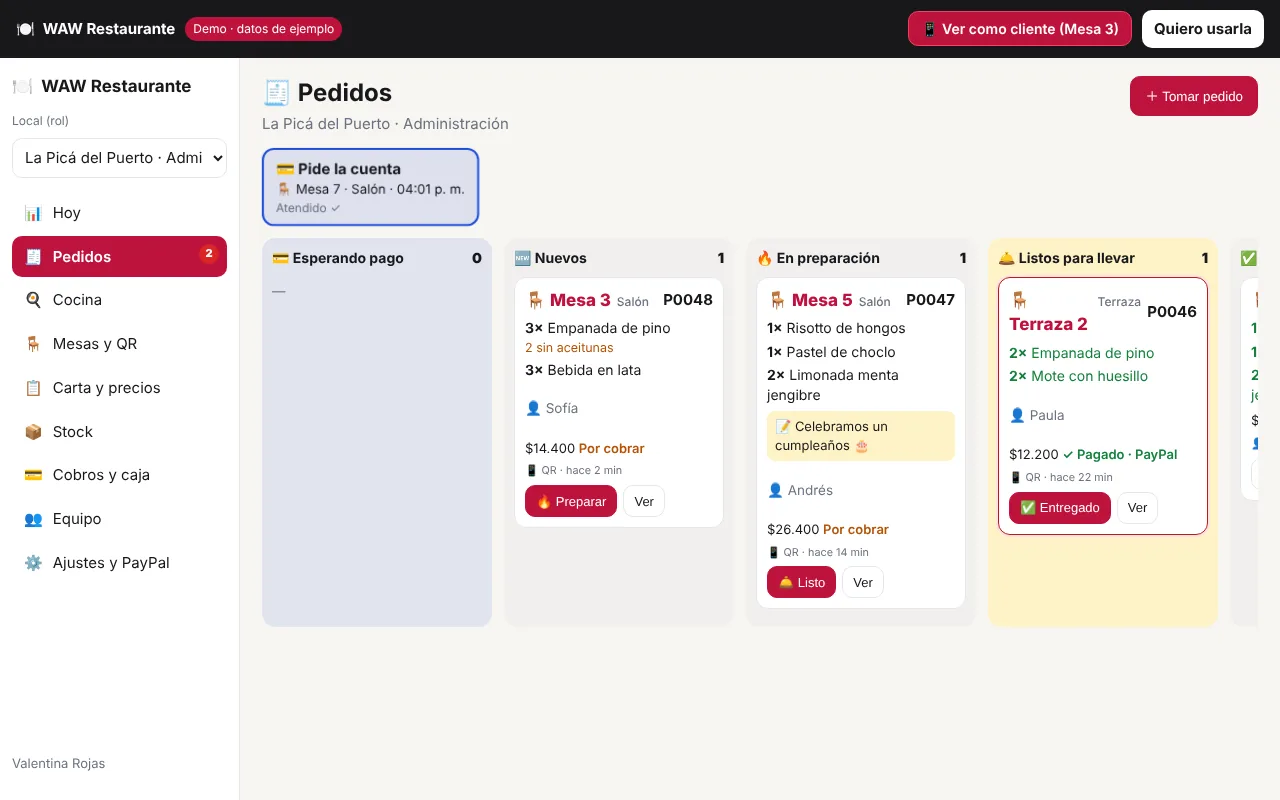
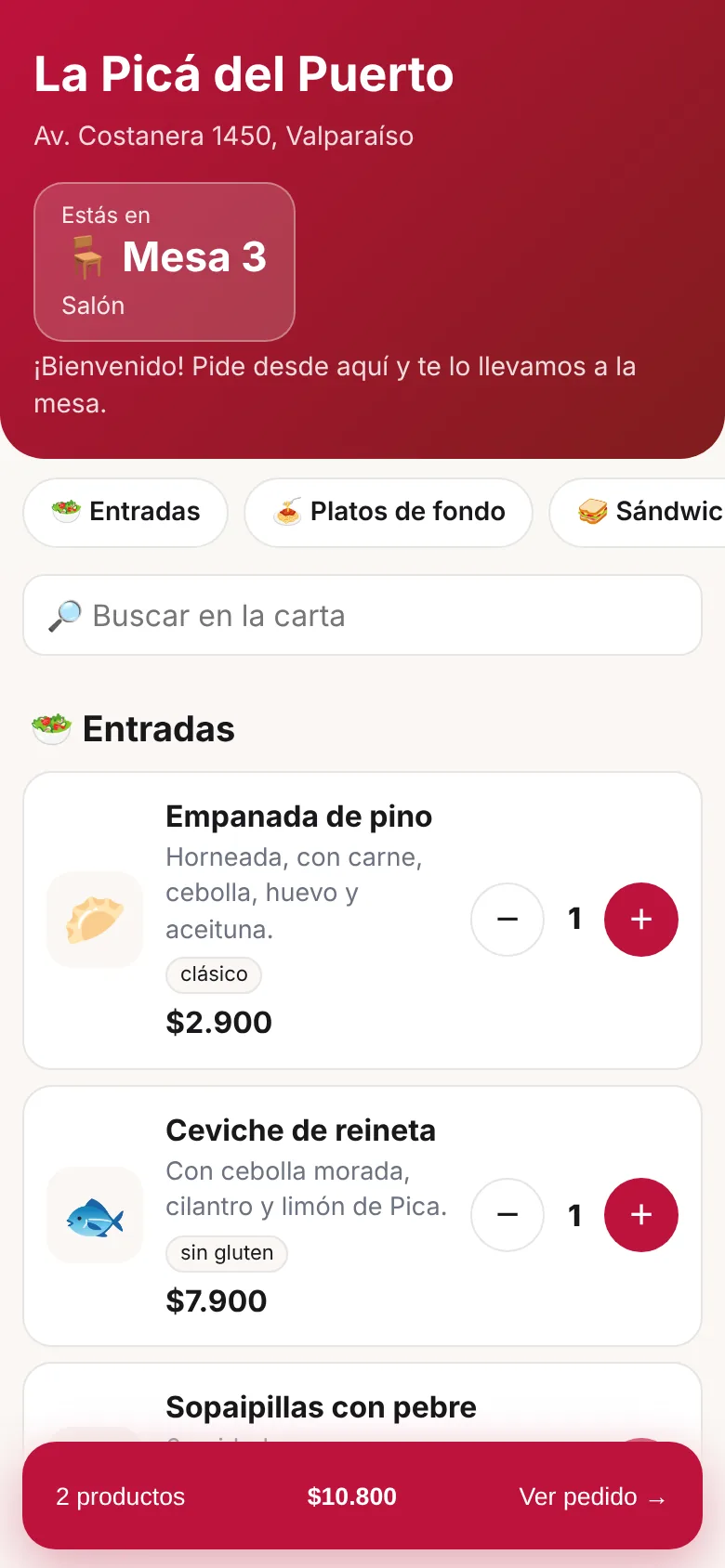
Restaurant orders screen with each order's table, its status and whether it is already paid The menu for table 3 on the customer's phone, with categories and add buttons
Real screenshots from the demo, with sample data.

At rush hour, the bottleneck is waiting

Waiting for the menu, the waiter, the bill and the card machine. Every wait is a table that does not turn and a customer who does not come back.

Today, in many venues

  • Paper ticketsHard-to-read handwriting, lost orders and dishes that reach the wrong table.
  • Outdated menuThe customer orders something that has run out and someone has to go back to the table to tell them.
  • The bill takes foreverAsking for the bill, waiting for it, waiting for the card machine and the change: 10 to 15 minutes of an occupied table.
  • No recordsAt closing nobody knows what was sold, what was cancelled or who took each payment.

With WAW Restaurante

  • Orders straight from the tableThe customer orders from their phone and the order comes in with the table number and area.
  • Stock on the menuWhatever runs out disappears from the menu on its own. The kitchen can also pause it with one tap.
  • Instant paymentGuests pay with Webpay, Mercado Pago or PayPal from the table and the order is marked as paid.
  • Everything recordedSales, payments, cancellations and stock movements with date, time and who did it.

Your venue up and running, in 3 steps

  1. Create the venue and the menu

    When you create the venue we leave 3 categories and 6 tables ready. Add your products with price, emoji picture, stock and whether they go to the kitchen or the bar.

  2. Print the table QR codes

    Each table has its own code. Print the QR sheet and stick each one on its table: the customer scans it with the phone camera.

  3. Connect your PayPal and invite the team

    Paste your business PayPal credentials and give access to cashiers, waiters and kitchen, each with their role.

The whole service, from the menu to closing

One tool for the dining room, the kitchen and the till, with clear permissions for each person.

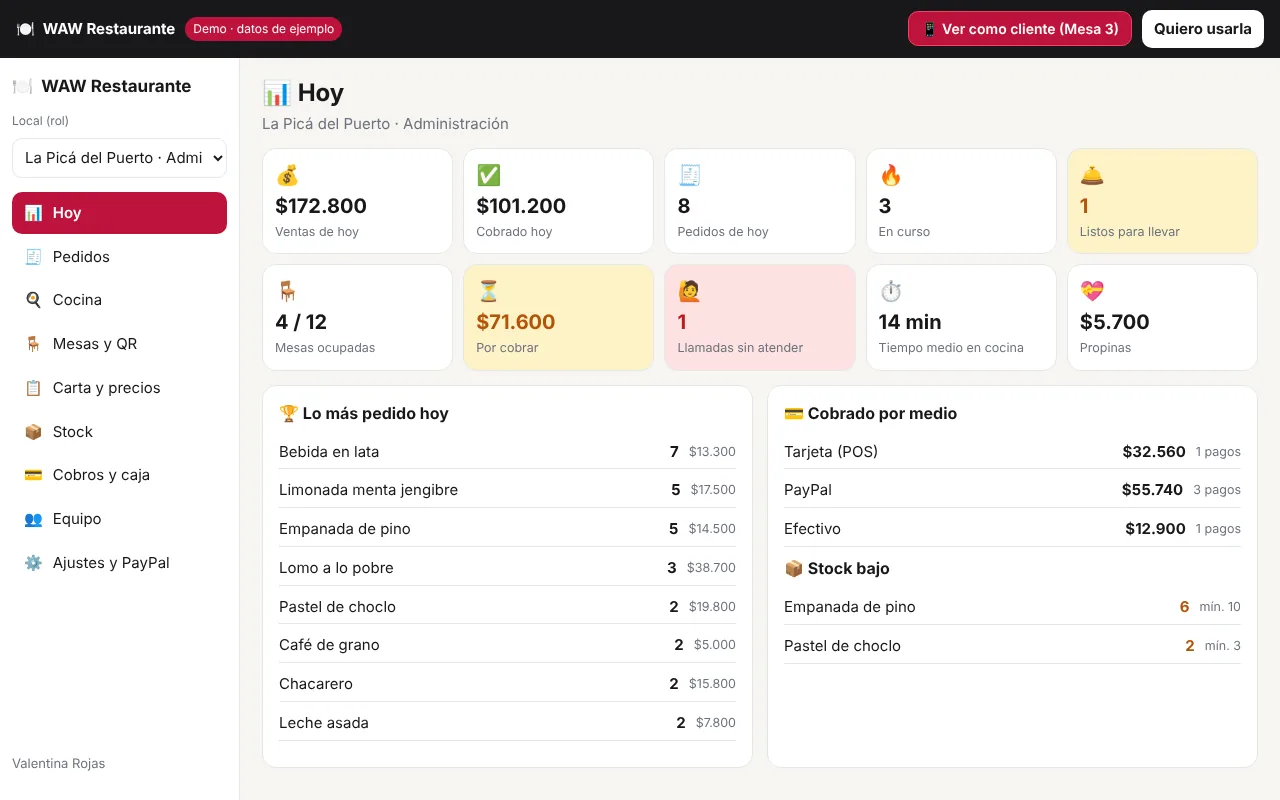
Today's dashboard with sales, open orders, occupied tables and low-stock products
Ordering from the table
A unique QR per table. The customer orders with no app or account, with notes per dish («no onion»).
Webpay, Mercado Pago and PayPal
Each location connects its own accounts. Payments go straight to you, with no WAW commission; you can also record cash, card or transfer.
Orders with their table
New, preparing, ready and served. The waiter sees which table and area each dish goes to.
Kitchen and bar screen
Each product goes to its station. The kitchen marks «ready» and the waiter gets the alert.
Call the waiter
From the table the customer asks for service or the bill, and the alert appears in orders.
Menu, categories and prices
Products with price, description, station and availability. Prices are always calculated by the server.
Stock that deducts itself
Each sale deducts and each cancellation returns. Stock-ins, adjustments, low-stock alerts and history.
End-of-day report (Z report)
Sales, net and tax, payments by method, tips and sales per team member, voids and products. Print it or download as CSV.
Waitlist with WhatsApp
Add waiting groups, see free tables and notify them with one tap on WhatsApp when their table is ready.
Instant reviews
After receiving or paying, guests leave stars and a comment from their phone. You see the average and the recommendation score.
Suggested selling
Before sending the order, the menu suggests the most ordered items from other categories (“Add a dessert?”) to raise the ticket.
Team categories your way
Create categories like Cashier, Waiter, Bar or Shift manager and choose which sections and actions each one sees.
History of every QR
Sales of each table and every online payment cancelled, declined or expired, with time and reason. Exportable to CSV.
Time limit to pay
Guests see a countdown; if they don't pay in time, the order is cancelled automatically, stock is returned and the table is freed.

What other systems don't give you

Compared with the best-known restaurant systems in the region.

Zero commission per sale
Essential US$29 and Pro US$49 per month per location, no percentage. Others also charge a percentage of what you sell.
Unlimited team
Waiters, kitchen and cashiers without paying per person. Staff turnover doesn't cost you.
Three gateways at once
Webpay, Mercado Pago and PayPal on the same QR: the guest chooses, and the money goes to your accounts.
Live simulation
Watch a full night at the restaurant before you sign up: tables, kitchen, payments and cash register in real time.
ERP and 3D virtual office
If you grow, the same team uses the Works And Works ERP and the 3D virtual office with the same account.
Server-verified payments
Every payment is confirmed with the gateway for the exact amount before the order is marked paid, and your keys are encrypted.

Watch the simulation in real time

Plans per location

Both plans include the essentials: guests order and pay from their table with the QR. Unlimited team, no WAW commission and a free trial.

Essential

US$29 per month per location

  • QR menu for every table, no app for the guest
  • QR payment with Webpay, Mercado Pago and PayPal, straight to your account
  • Ask for the bill and pay for the whole table at once
  • Kitchen display, occupied tables and in-store payments
  • End-of-day report, voids and full order traceability
  • Unlimited team with 6 permission categories
Recommended

Pro

US$49 per month per location

  • Everything in Essential
  • History of every QR with cancelled payments and CSV
  • Waitlist with WhatsApp notice
  • Guest reviews and suggested selling
  • Stock and inventory
  • Team categories your way

A lunch service with WAW Restaurante

This is what a normal service looks like. The times are an example.

  1. They sit at Table 3They scan the QR, see the menu with prices and order two dishes and a drink.
  2. Kitchen and bar receive itThe dishes appear in the kitchen and the drink at the bar, with «Table 3 · Terrace».
  3. The dishes are readyThe kitchen marks «Ready». The waiter sees the alert and knows exactly which table to bring them to.
  4. They pay from the table“Pay with Webpay” (or Mercado Pago, or PayPal), confirm and done: the order is paid without waiting for the bill.
  5. End of dayIn “End-of-day report” you see how much came in through Webpay, Mercado Pago, PayPal, cash and card, each waiter's tips and what sold most.
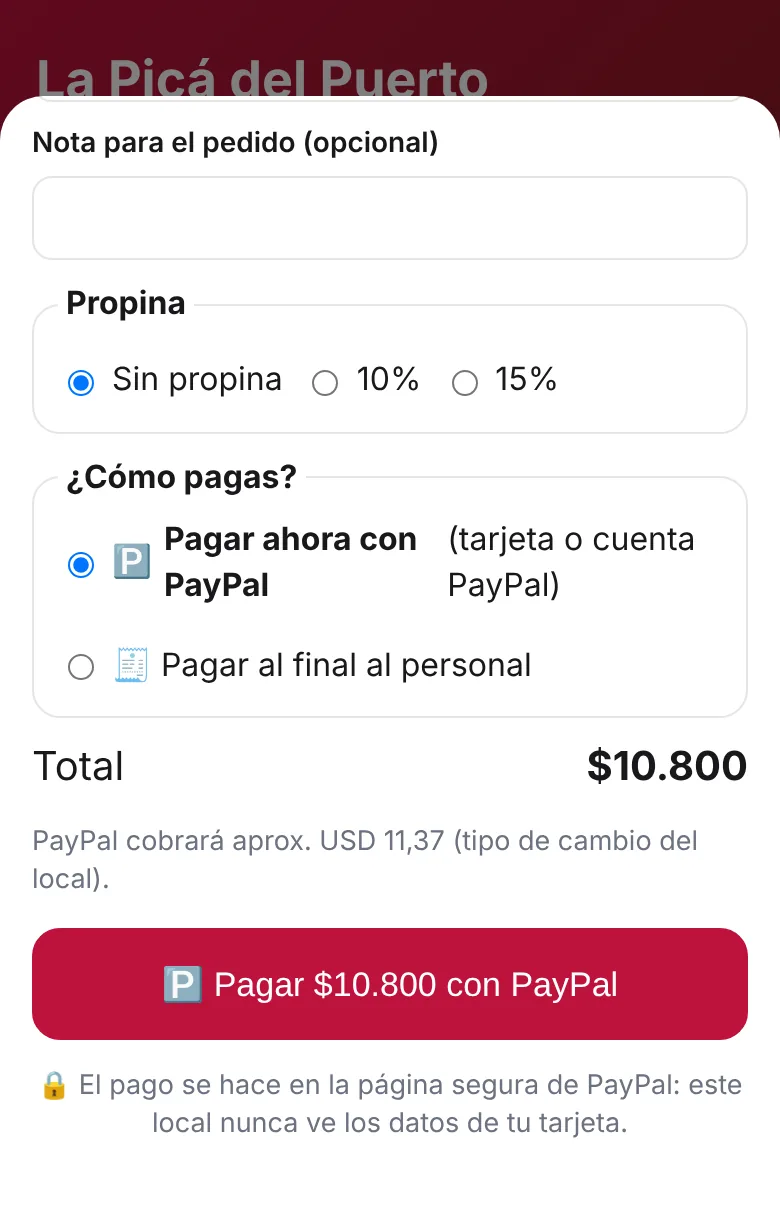
The table 3 order on the customer's phone: tip, payment method and the Pay with PayPal button
The customer chooses the tip and pays from the table.

Each person sees only what they should

Permissions are enforced by the server, not just the screen. Every action is recorded with its author.

What they can doManagementBudgetWaiterKitchen
Take and serve ordersYesYesYesNo
Prepare and mark «ready»YesYesNoYes
Take paymentsYesYesYesNo
Stock and end of dayYesYesNoPause products
Menu, tables, team, PayPal and logYesNoNoNo
Full guide

How to use WAW Restaurante, step by step

From creating the venue to the first payment from a table. The tool also includes a built-in guided tutorial.

Getting started3 steps

Create the venue in a minute and follow the «Today» checklist.

  1. Create your venueOpen WAW Restaurante from your company account and tap «Create my venue». 3 categories and 6 tables with their QR are ready.
  2. Adjust the detailsIn Settings define the name the customer sees, the currency, the suggested tip and whether customers can order from the table.
  3. Follow the «Today» checklistThe dashboard shows what is missing: menu, tables, PayPal, team and the first order.
Menu, categories and prices4 steps

The menu the customer sees is the same one your team uses.

  1. Try the sample menuIn “Menu and prices”, “🌮 Load sample menu” adds a complete taquería (tacos, burritos, starters, drinks and desserts) marked “Sample”, priced in your currency. Try it from the QR and remove it with “Remove sample menu”: your own products are not touched.
  2. Create categoriesStarters, mains, drinks… each with its icon, its order and its station: kitchen, bar or no preparation.
  3. Add productsName, description, price and emoji. Optionally, stock and a minimum to trigger alerts.
  4. Pause what has run out«Available» switches off with one tap and the product disappears from the tables' menu.
Tables and QR codes3 steps

Each table identified with its own code.

  1. Create the tablesOne by one or several at once, with name, area (dining room, terrace, bar) and number of seats.
  2. Print the QR codes«Print QR» builds a sheet with all the codes and each table's name, ready to cut out.
  3. Change a code if needed«New code» invalidates the previous QR instantly, for example if someone took the card.
Orders and kitchen4 steps

From the customer's phone to the table, no paper.

  1. The order comes in with its tableWhether the customer orders or the waiter takes it with «Take order», it is saved with table, area, products and notes.
  2. Kitchen and bar prepareEach screen sees only its station. «Prepare» and then «Ready».
  3. The waiter servesReady orders are highlighted with their table. «Served» closes the cycle.
  4. Calls from the tables«Call the waiter» and «Ask for the bill» appear at the top of Orders until someone handles them.
Payments with Webpay, Mercado Pago and PayPal7 steps

The money goes straight to your business accounts, with no WAW commission.

  1. Connect your gatewaysIn “Settings and payments”: Webpay (Transbank merchant code and key; without them it stays in test mode), Mercado Pago (Access Token) and PayPal (Client ID and Secret). “Save and test” checks the connection. Keys are stored encrypted.
  2. Guests choose how to payOn the QR they see the connected gateways, pay on the gateway's secure page and return to their table. The server confirms the exact amount before marking the order paid.
  3. Time limit to payYou set how many minutes guests have to pay online (3 to 30). They see the countdown; if they don't pay or cancel, the order is voided automatically, stock is returned and the table is freed. You also set how many pending payments a table can have at once.
  4. Pay the whole table's billWith “Ask for the bill”, guests see everything the table owes (what they ordered by QR and what the waiter took), choose the tip and pay it all at once with the connected gateway: every order is marked paid. They can also ask for the bill to be brought.
  5. No gateway yet: simulationIf you haven't connected Webpay, Mercado Pago or PayPal yet, turn on “Simulated payments” in Settings: guests can “Simulate payment” and the table is marked paid as “Simulation”, with no real money, so you can test the whole flow. Turn it off when you open to the public.
  6. Verify a paymentIf the guest paid and closed before returning, open the order and tap “Verify online payment”.
  7. Other methodsCash, card or bank transfer are recorded with «Take payment», also for several orders of a table at once.
Stock3 steps

Never sell what you do not have.

  1. Turn on stock per productOnly on the products that need it, with a minimum quantity to trigger alerts.
  2. Record stock-ins and adjustmentsPurchases, waste or counts. Each movement is saved with reason and author.
  3. Automatic deductionEach sale deducts and each cancellation returns. If it reaches zero, the product stops showing at the tables.
Team, categories and closing4 steps

Each person sees only what their category allows, and everything is logged.

  1. Create your categoriesAdministration, Cashier, Waiter, Kitchen, Bar and Host come ready. Edit them or create your own (for example “Shift manager”) and choose which sections and actions each one sees: charge, void, edit the menu, see the closing…
  2. Add your teamWhen adding a person you choose their category. If they don't have an account, one is created with a temporary password. The team is unlimited.
  3. End of dayZ report with sales, payments by method, tips, sales per person and products; printable and in CSV.
  4. A log of everythingOrders, status changes, payments, cancellations, stock and menu changes are saved with date, time and author.
Table history and locations5 steps

Everything that happened on each QR, and how to open more locations.

  1. Occupied tables at a glanceIn “Tables and QR” each table shows whether it's free, whether someone opened its QR (browsing the menu) or occupied, who occupied it (staff, the QR or the waitlist) and since when. “Occupy table” and “Free table” are logged with name, time and reason; paid tables with no activity are freed automatically.
  2. Void what was ordered by mistakeEven if the order is already in the kitchen, you can remove one product or void the whole order, with a reason and choosing whether it returns to stock or counts as waste. If it was paid, the refund is recorded in the till. “Traceability” shows every step of the order with who and when.
  3. History of every QRIn “Table history” you see, per table, paid and voided orders and every online payment the guest cancelled, the bank declined or that expired unpaid, with time and reason. Filter by dates and status and download it as CSV.
  4. From the tableIn “Tables and QR”, tap a table and then “📜 History” to see only that code.
  5. More locationsYour account starts with 1 location. To open another branch tap “+ New location…” › “Request more locations”: the Works And Works team reviews it and answers you in Support.

Ready for your country and your currency

Each venue chooses its currency and time zone. The tool adapts to how you work.

  • Venue currencyChilean pesos, dollars, euros, dirhams and more. If PayPal does not support your currency (for example, CLP), the charge is made in dollars with the exchange rate you set, and the customer sees both amounts.
  • Suggested tipSet the percentage and the customer chooses whether to add it when paying.
  • Takeaway and dine-inTakeaway orders live alongside table orders on the same screen.
  • Multiple venuesA company can have several restaurants, each with its menu, tables, team and PayPal.

This page is available in Spanish, English and Arabic.

Truly secure payments

  • Your own PayPal each restaurant collects into its own account; Works And Works never touches the money.
  • Encrypted credentials the PayPal Secret is stored encrypted (AES-256-GCM) and is never shown again.
  • Payment verified on the server PayPal confirms the status, amount, currency and order before it is marked as paid.
  • No card data the customer pays on PayPal's page; the restaurant never sees or stores their card.
  • Prices that cannot be tampered with the server calculates the total with the current menu, not with what the phone sends.
  • QR codes that can be renewed each table has a long random code; you can change it any time and there is a limit on orders per minute.

Who it is for

  • Restaurants and local eateriesDining room, terrace and takeaway.
  • Cafés and barsSeparate bar and kitchen, with fast payment.
  • Food courts and food trucksQR orders with no queue at the counter.
  • Chains with several venuesEach venue with its menu, its team and its PayPal.

Frequently asked questions

Does the customer have to download an app?

No. They scan the table's QR with the phone camera and the menu opens in the browser. No account needed.

How does the team know which table to bring the order to?

Each QR is linked to a table and its area. The order reaches the kitchen and the orders screen as «Table 3 · Terrace», for example, and if the table has an assigned waiter, their name appears.

Where does the money from PayPal payments go?

Straight to your restaurant's PayPal Business account. Each venue connects its own account and Works And Works never receives or holds the money.

Is it safe to connect my PayPal account?

Yes. The Secret is stored encrypted with AES-256-GCM and is never shown to anyone again. Every payment is verified with PayPal on the server (status, amount, currency and order) before it is marked as paid.

What if my currency is the Chilean peso?

PayPal does not charge in CLP. You set an exchange rate and the charge is made in US dollars; the customer sees the amount in pesos and dollars before paying.

Can I take cash or card payments?

Yes. The cashier or the waiter records cash, card or bank transfer payments, for one order or for everything pending at a table.

What if someone places an order and does not pay?

You choose whether table orders are paid before preparation or at the end. Orders waiting for payment that are not paid within 30 minutes are cancelled automatically and the stock is returned.

Can the price be tampered with from the phone?

No. The server calculates the total with the current menu prices and stock, regardless of what the phone sends.

What if a QR is lost or copied?

With «New code» you generate a new QR for that table and the old one stops working instantly. There is also a limit on orders per minute.

How does stock work?

Each sale deducts and each cancellation returns. When a product reaches zero it stops showing at the tables, and the kitchen can pause it with one tap.

Do I need to buy equipment?

No. A phone, tablet or computer with a browser is enough for the cashier, waiters and kitchen, plus the QR codes printed on paper.

How much does it cost?

It depends on the number of venues and tables. Request a quote in the form and we will reply with a price for your case.

Can I try it before signing up?

Yes. The public demo is the real tool with a sample restaurant: you see the dining room, the kitchen and the customer's phone at the same time, with a simulated PayPal. Nothing is saved on the server.

WAW suite

Works better alongside other tools

Each solution stands on its own, but they share sign-in, security and the same way of working.

Try it today with a sample restaurant

In the demo you see the dining room, the kitchen and the customer's phone at the same time, and you can pay with a simulated PayPal. Nothing is saved.

Contact

Let's talk about your restaurant

Tell us how many venues and tables you have and we will show you WAW Restaurante working with your menu. No commitment.

WhatsApp Request a demo